Segments are dynamic customer groups created from customer data in Antavo, such as age, average basket value, purchase activity, or rewards redeemed. They help target loyalty program experiences and offers to customers who meet specific conditions. Segment membership is continually recalculated as customer data changes, ensuring that each segment contains an up-to-date group of customers.
To learn how segments differ from customer lists and audiences, see Customer grouping.
When you navigate to the Segments tab of the Customer Insights menu, you’ll find the list of segments that have already been added. The status label below the segment's name indicates whether it is active, inactive, or archived.
Segment configuration
Create a new segment
Click the Create segment button on the Segments page
Enter the name of the segment
Add customer filter(s):
Select the customer attribute
You can filter customers based on any information Antavo stores about them, including built-in and custom fields configured under the Customers menu.Select the operator
Define the value
Use the AND and OR buttons to create complex filter conditions.
Select a user group
If you use the User group module and have enabled the Segment entity in the group settings, you must assign a group to the segment. Users who are not members of the assigned user group cannot access the segment or related customer segment information in the Management UI.Click Save
.png)
If a customer meets the criteria defined by the filters, the segment is added to the Segments section of the customer profile.
.png)
Edit segments
Navigate to the Segments tab
Click the Edit button of the segment you want to modify
Change the segment name or filter conditions
Click Save
Export segments
Navigate to the Segments tab
Click the Export button of the segment you’d like to export
You’ll be directed to the customer export configuration interface with the segment filter populated automatically. Use the editor to customize your export if necessary.Click Create
Inactivate segments
Navigate to the Segments tab
Click the Edit button of the segment you’d like to inactivate
Click Set inactive
Confirm your choice in the dialog
Inactive segments cannot be selected in any loyalty program mechanism configuration.
Archive segments
You can delete inactive segments by archiving them.
Navigate to the Segments tab
Click the Edit button of the segment you’d like to archive
Click Archive
Confirm your choice in the dialog
Archiving is irreversible. Once a segment is archived, all customers are removed from the segment, and the segment cannot be restored.
Using segments in workflows
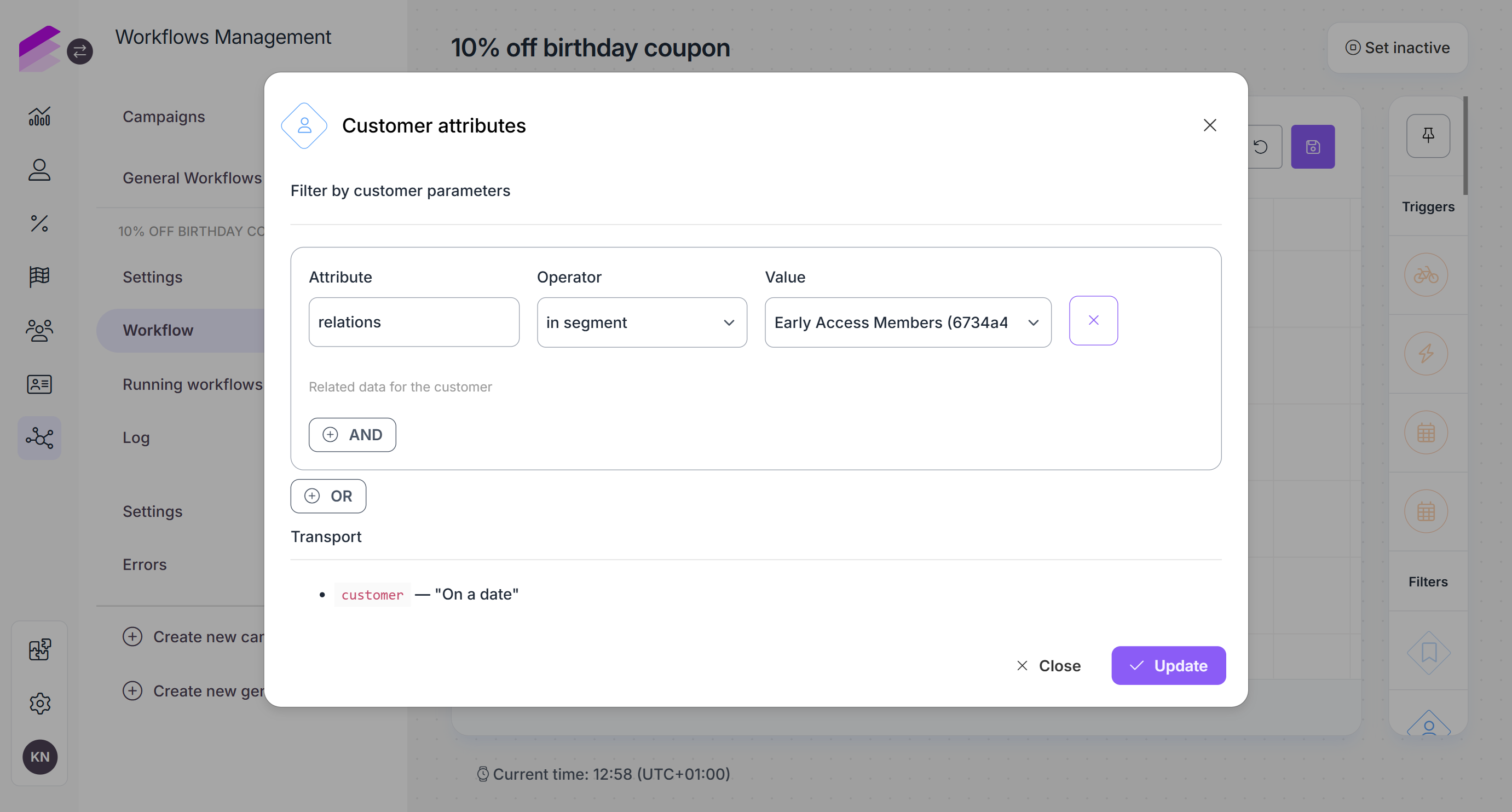
Segment membership can be used in Customer attribute filters. Use the in segment or not segment relation to filter customers based on whether they belong to a selected segment.
Using segments in loyalty mechanisms
Segments can be used to restrict loyalty program functionality to customers who meet the configured segment conditions.
Segments can be used in the following Loyalty Engine modules:
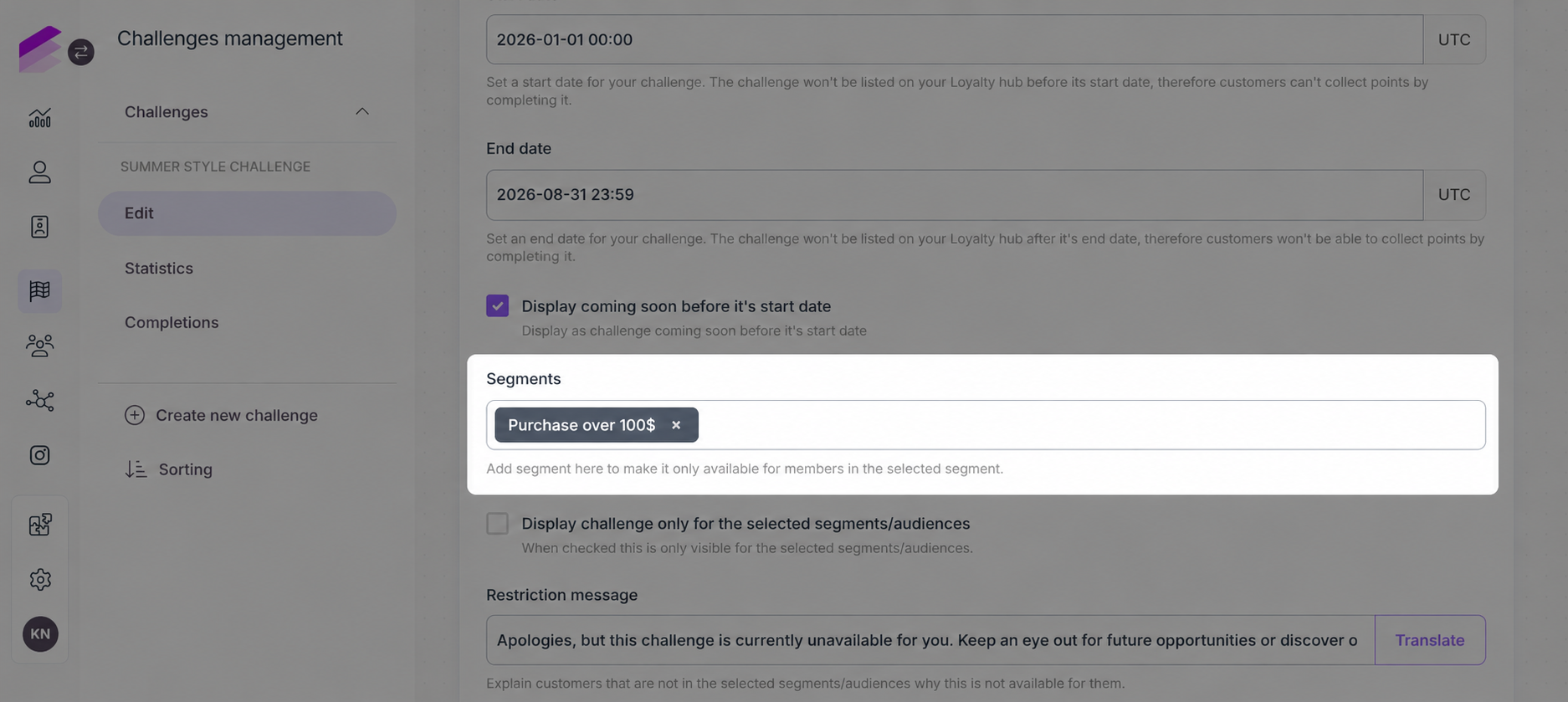
If User groups are used, the segments available in configuration fields depend on user group access. Only segments assigned to a user group the current user belongs to can be selected.
Importing segments from Emarsys
Segments configured in Emarsys can also be used in the supported loyalty modules mentioned above. To import them, click Import segments in the sidebar of the Customer insights menu or Import on the Segments page.
Imported segments are synchronized daily to keep their membership up to date. Only customers who are already members of your loyalty program can be synchronized to loyalty segments.
Imported segments are displayed under the Segments tab.