Customer lists are groups of explicitly selected customers. Membership can be managed manually in the Management UI, through the Customer List API, or using Workflows.
Unlike segments, customer lists do not use conditions to automatically determine membership. To learn how customer lists differ from segments and audiences, see Customer grouping.
When you navigate to the Customer Lists tab of the Customer Insights menu, you’ll find the customer lists that have already been created. The status label below the list name indicates whether it is active, inactive, or archived.
.png)
Create a new list
Navigate to the Customer lists page
Click Create
Enter the name of the list
Click Create
You can edit the list name anytime using the Edit button.
Add members to a list
Go to Customer Lists > View
Click Open next to the list to which you want to add customers
Under Add new member, enter the name or the email address of the customer
Find the customer you want to add
Click the corresponding Add button
Remove members from a list
Go to Customer Lists > View
ClickOpen next to the list from which you want to remove customers
Find the customer you want to remove
Click the corresponding Remove button
Confirm your decision in the dialog
List membership in Customer Insights
If the customer is a member of a list, the list is added to the Segments section of the customer profile as customer lists are treated as a type of segment.
.png)
Manage customer list membership through the API
Customer list membership can also be managed in bulk through the Customer List API.
To view the status and errors of bulk customer list operations, navigate to Customer Lists > Bulk Operation Request Queue.
The following information is displayed for each operation:
Type | The type of customer list operation (e.g., customer_add, customer_remove) |
Status | The current status of the bulk operation |
Customer List ID | The ID of the customer list associated with the bulk operation |
Batch ID | The unique identifier for the specific bulk operation process |
Number of Customers | The number of customers included in the operation |
Number of Errors | The number of errors encountered during processing |
Created at | The date when the operation was initiated |
Click Errors to review customers affected by the error, along with the corresponding error code and message.
Use customer lists in Workflows
Customer list membership can be managed as part of a workflow using the Add to list and Remove from list action nodes.
Use these actions to add customers to or remove customers from an existing customer list when the workflow reaches the corresponding node.
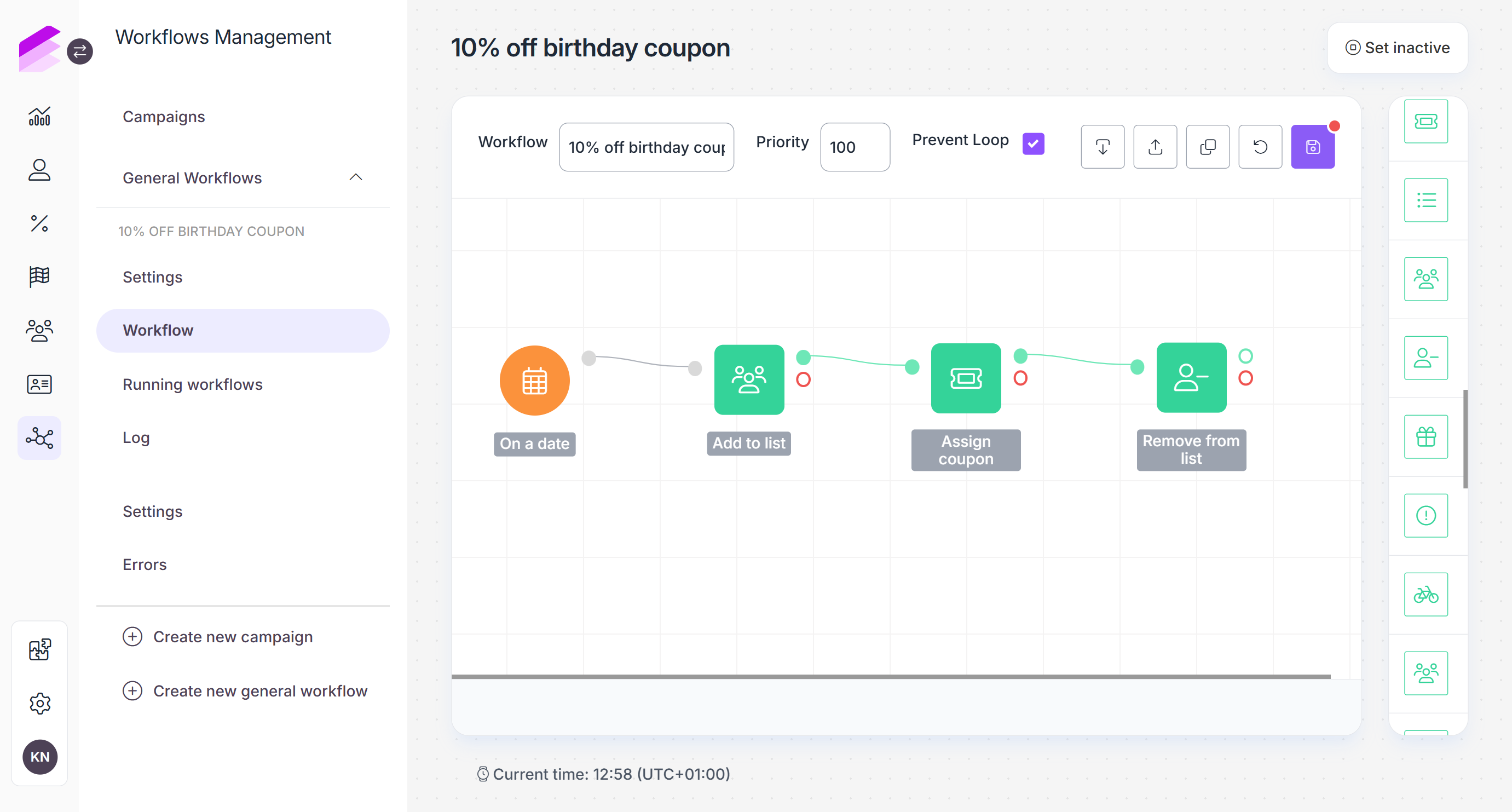
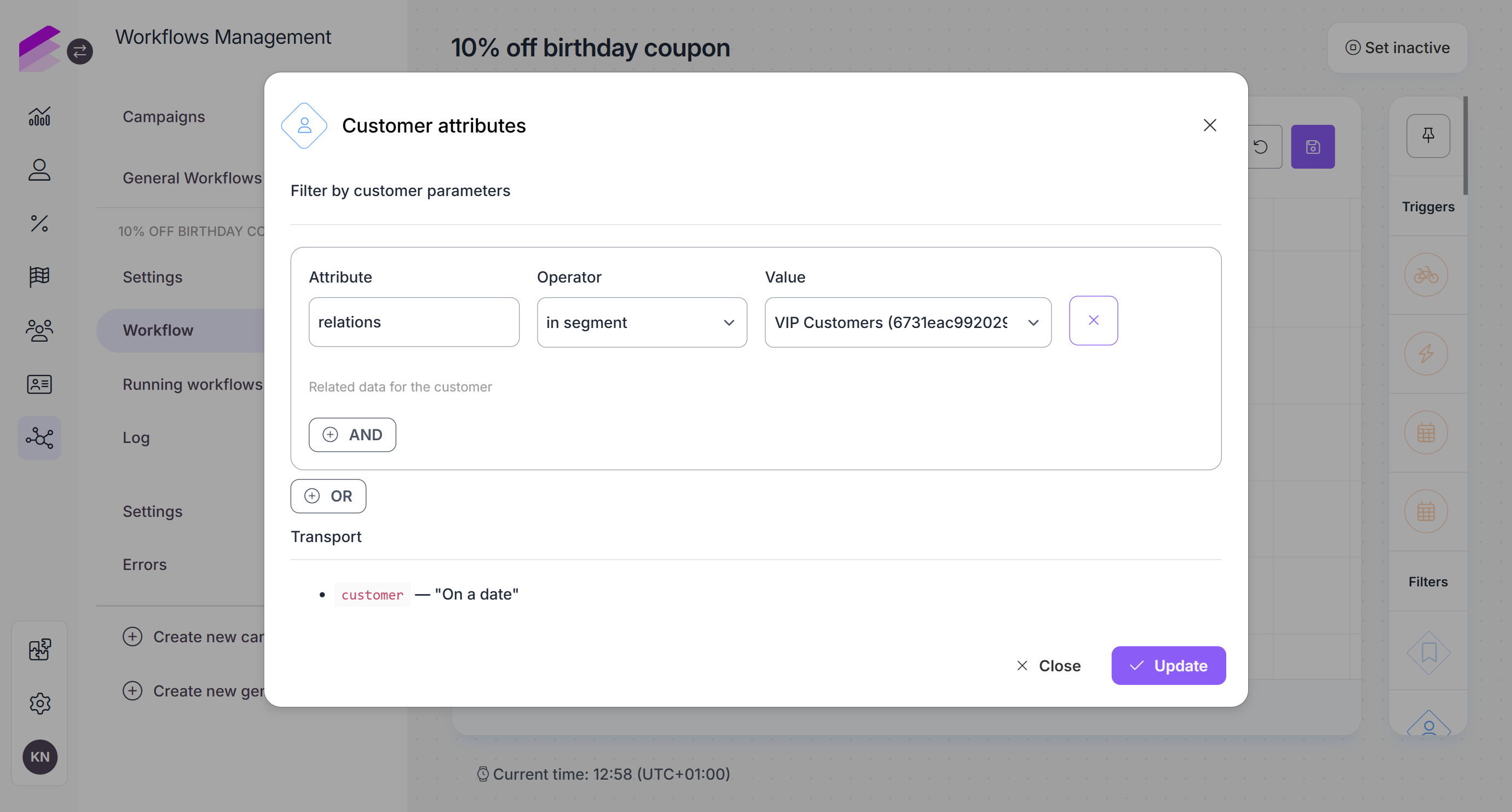
List membership can be used in Customer attribute filters. Customer lists are treated as a type of segment in these configurations, so use the in segment or not in segment relation to filter customers based on whether they belong to a selected list.
Use customer lists in loyalty mechanisms
Customer lists can be used to restrict loyalty functionality to selected groups of customers. Lists are available in Segment selectors.
They can be used in the following Loyalty Engine modules:
.png)