Tier flows define the rules and actions that control what happens to a customer in a tier structure (e.g., when they enter the structure, gain or lose tier score, or move to another level). The editor follows the same drag-and-drop model as the Workflow editor. Each flow starts with a trigger and is built by connecting configurable steps, called nodes, on a canvas. Unlike a standard Workflow, every Tier flow is permanently bound to one tier structure and can use only the nodes supported by Tier Manager.
Standard Workflows and Tier flows remain separate:
Tier-specific nodes cannot be added to a standard Workflow.
Unsupported Workflow nodes cannot be added to a Tier flow.
A Tier flow cannot change the tier state of a structure other than the one to which it is bound.
Creating a Tier flow
Open Tier Manager > Tier flows
Select Create new Tier flow
Enter a name
Select an active tier structure
The binding cannot be changed after the Tier flow is created.Select the Blank template
Select Create to open the Tier flow editor
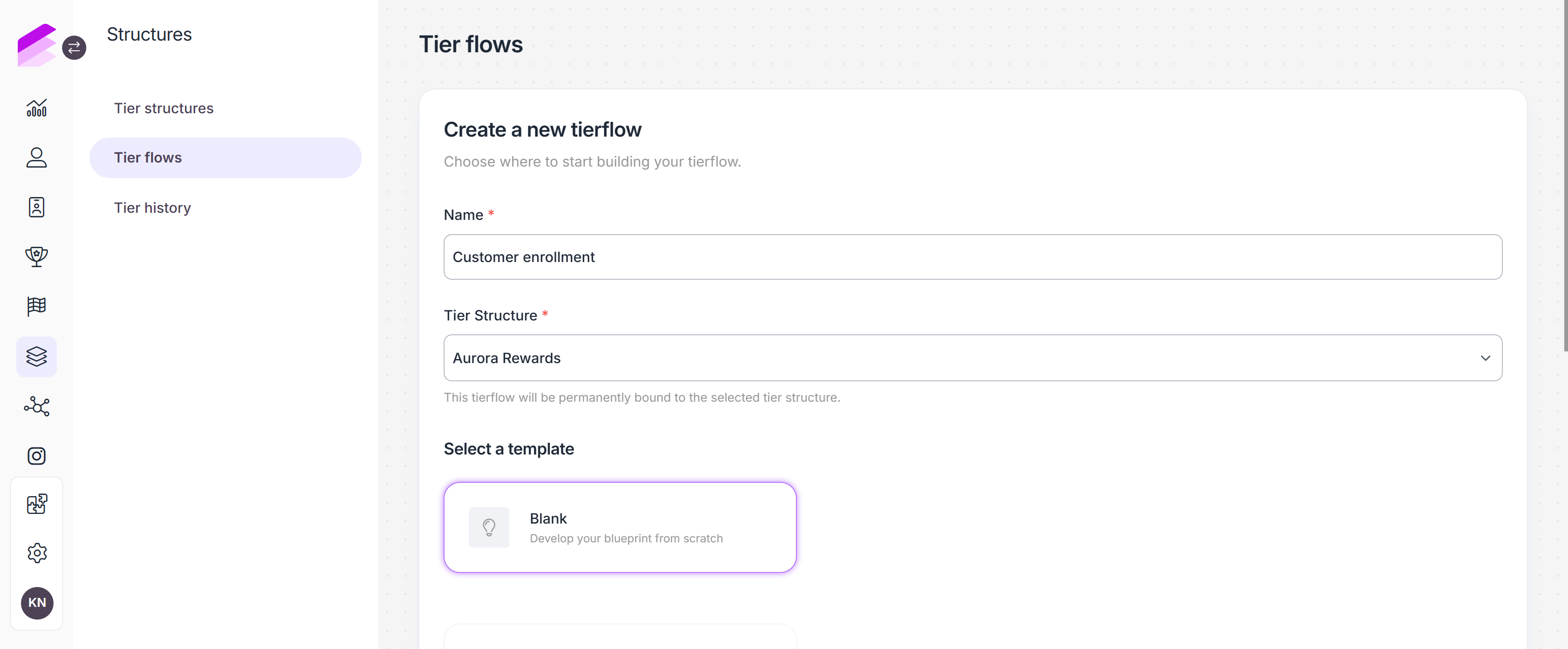
Configuring a Tier flow
Use the Tier flow editor in the same way as the Workflow editor. Drag nodes from the palette to the canvas, configure their settings, and connect their outputs to build the required logic.
The editor header displays the following settings:
Tier flow: Name of the flow.
Tier structure: Structure to which the flow is permanently bound.
Revision: Current saved revision. The value starts at 1 and increases after each successful save.
Priority: Execution order when multiple flows are triggered by the same event. Higher-priority flows run first.
Prevent loop: Prevents the Tier flow from triggering itself.
A Tier flow starts with either an Event or On date trigger. An Event trigger can use any event available to Workflow triggers, while On date flows run scheduled processes such as expiration evaluation or periodic tier-level recalculation.
Click the save icon to store the configuration. The Tier flow remains inactive until you activate it. When it is ready to run, click Set active in the upper right corner.
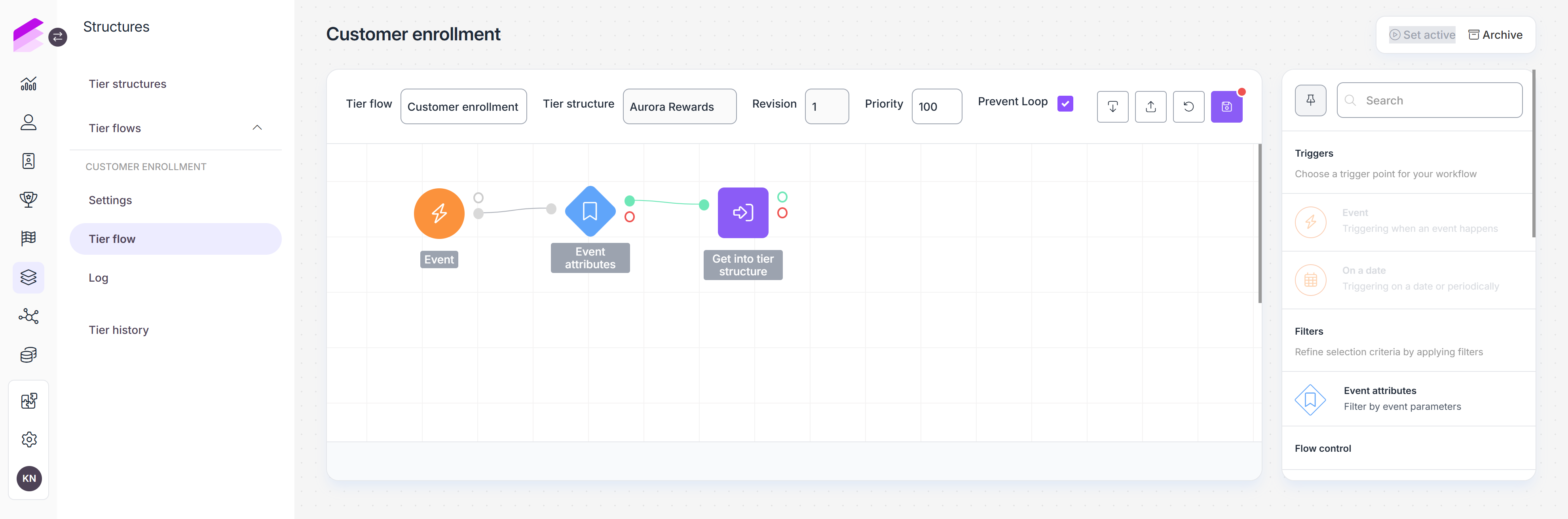
Available Tier flow nodes
Tier flows provide tier-specific nodes together with a restricted selection of Workflow nodes. Only nodes available in the Tier flow palette can be added or saved.
Supported Workflow nodes
Category | Nodes |
|---|---|
Triggers | |
Filters | |
Flow control | |
Modifiers |
Tier flow specific nodes
Get into Tier Structure
Use Get into Tier Structure to enroll a customer in the connected tier structure. The node creates the customer's membership in that structure, assigns their initial tier level, and sets their initial tier score.
If the customer is already enrolled, their existing tier state is not overwritten.
The Destination tier structure is inherited from the Tier flow and cannot be changed in the node.
Selecting the initial tier level
Manual: Select a fixed level from the connected tier structure. Use this when every customer following this path should enter at the same level.
Based on a variable: Select a numeric variable available at this point in the Tier flow. This can be a value transported from the triggering event or stored by an earlier Variable assign node, such as the customer's imported starting score or qualifying purchase amount (e.g., event.total or for custom attributes event.properties.qualification_value). Tier Manager uses the value to select the highest score-based level for which the customer has enough score. Invitation-only levels cannot be selected this way.
The variable used for level selection does not automatically become the customer's initial tier score. Configure the score separately in the next section.
Setting the initial tier score
Start at 0: Starts the customer with a tier score of 0.
Tier level minimum threshold: Starts the customer with the minimum score required for the selected score-based level.
Specific value: Starts the customer with the value entered in the node.
If the resulting initial score is 0, the customer starts with a tier score of 0 and no separate score change is added to the ledger. If the initial score is not 0, the amount is stored as the first score change in the customer's tier score ledger. When expiration is enabled, the calculated expiration date is also saved with this change.
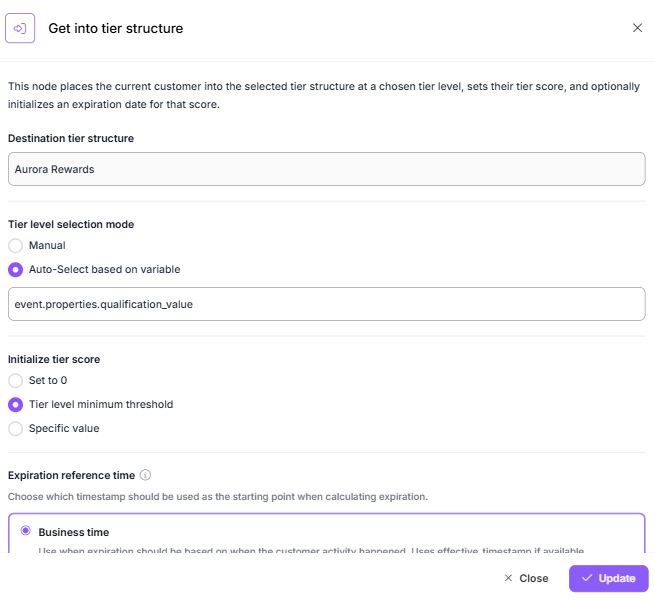
Configuring expiration
Expiration settings are available when the connected tier structure has an expiry policy. The node initializes the customer's expiration evaluation date. If the node also assigns a non-zero initial tier score, the calculated date is stored with that score change as its planned expiration date.
Reaching this date does not remove the amount from the customer's score immediately, the expiration logic in a Tier flow must process it.
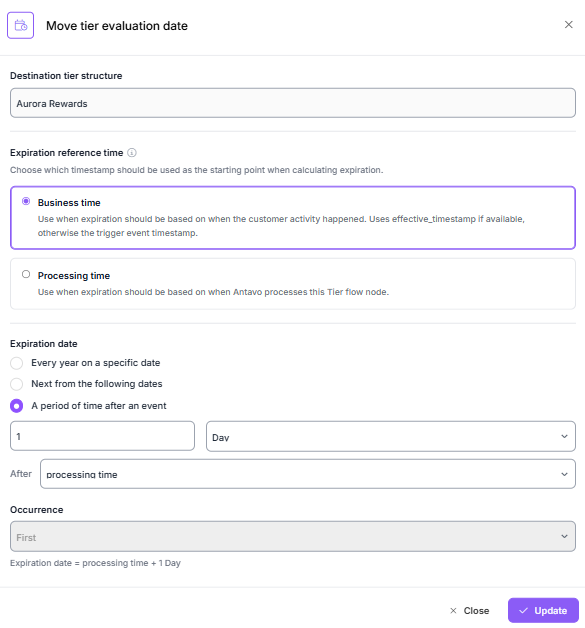
Expiration reference time determines which timestamp is used as the starting point when the expiration date is calculated:
Business time: Uses the time when the customer activity is considered to have happened (regular event timestamp or
effective_timestampfor historical or backdated activity).Processing time: Use this when expiration should start when the customer is enrolled in Tier Manager, regardless of when the triggering activity originally happened (e.g., if a purchase happened on April 1 but was processed on April 5, a 30-day period starts on April 5).
For events processed in real time, business time and processing time are usually the same or only moments apart. The distinction is important when an event reaches Antavo later than the activity it represents.
Use Expiration date to define how the date is calculated.
Tier Score Progress
Use Tier Score Progress to add to or subtract from a customer's tier score. Select the operation and provide the amount as a fixed value, a variable, or an attribute of the triggering event.
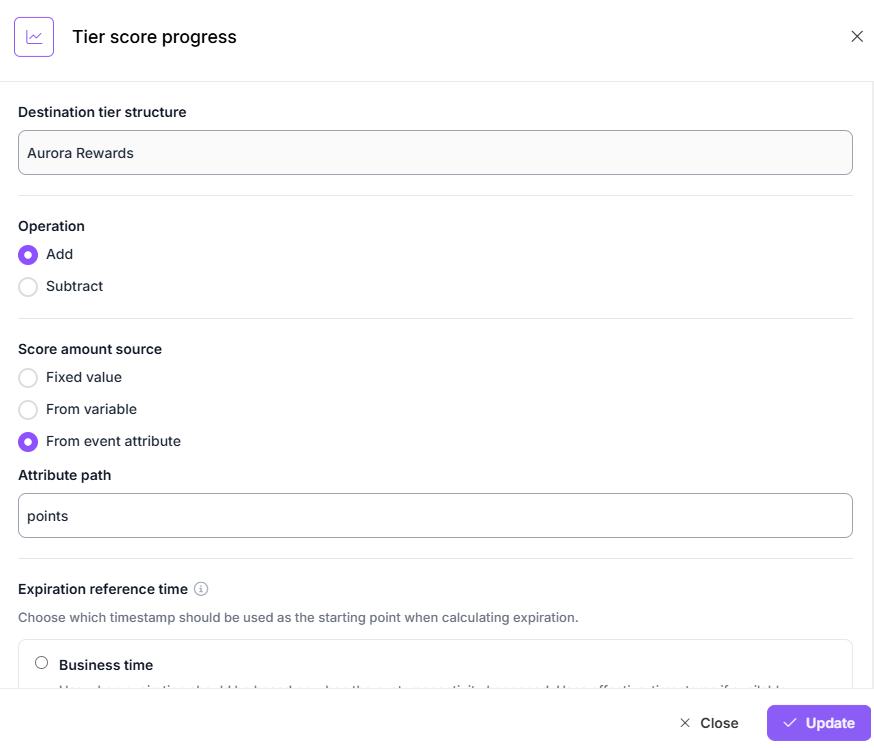
Adding score creates a positive tier score entry. Subtracting score creates a negative entry. If the tier structure uses an expiry policy, an expiration date must also be configured for the entry.
This node changes the tier score only. Add Recalculate Tier Level to the flow when the customer's tier level should also be evaluated.
Recalculate Tier Level
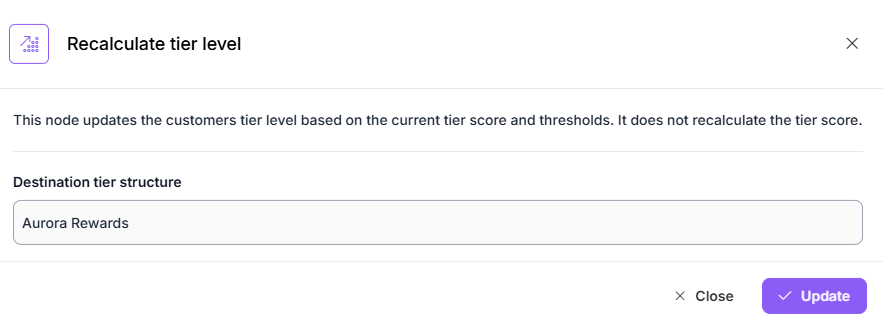
Use Recalculate Tier Level to update a customer's tier level based on their current tier score. The node moves the customer to the highest score-based level for which they have enough tier score.
Invitation-only levels are not considered because they have no score requirement and must be assigned explicitly. As a result, running this node for a customer currently assigned to an invitation-only level can move the customer to a score-based level.
Move Tier Evaluation Date
Use Move Tier Evaluation Date to set or update the expiration evaluation date stored in the customer's tier snapshot. Expiration Evaluation uses this value to determine which tier score entries are eligible to expire.
Configure Expiration reference time and Expiration date in the same way as for the Get into Tier Structure node. See Configuring expiration for details about the available options, including event occurrence selection.
Expiration Evaluation
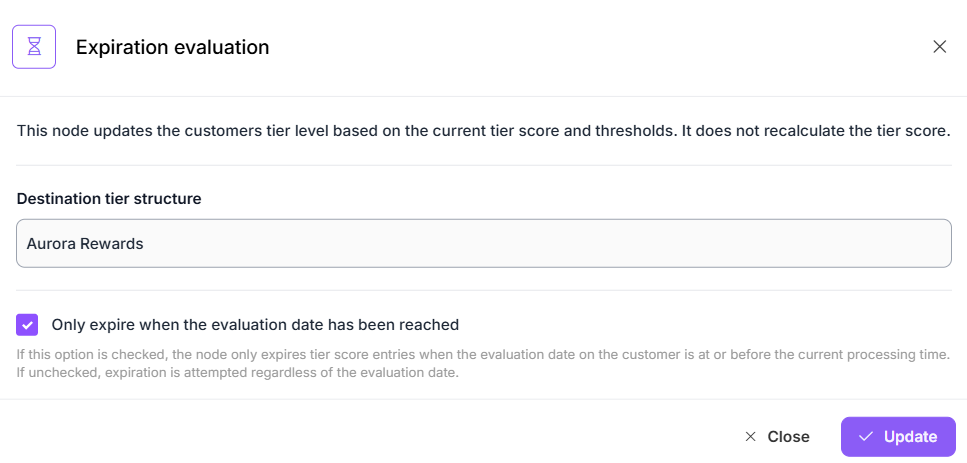
Use Expiration Evaluation to compare the expiration dates of active tier score entries with the customer's expiration evaluation date. Eligible entries are marked as expired and are no longer included in the customer's current tier score. Entries with a later expiration date remain active.
Expiration Evaluation can be used in both Event and On date Tier flows.
In an Event-triggered flow, expiration is evaluated when the selected customer event starts the flow.
In an On date flow, expiration is evaluated according to the configured schedule.
For example, a daily schedule can be used for rolling expiration, while a less frequent schedule evaluates multiple recorded score changes together.
Use Only expire when the evaluation date has been reached to control whether the node waits until the customer's expiration evaluation date:
Selected: Expiration is processed only when the customer's evaluation date is the same as or earlier than the time when Antavo runs the node. If the evaluation date is still in the future, no score changes are expired.
Cleared: The node attempts to expire eligible score changes whenever the Tier flow reaches it, even if the customer's evaluation date is still in the future.
Keep the option selected when expiration should follow the date scheduled for the customer. Clear it when the Tier flow should perform the expiration check every time the node runs.
Using Tier Manager events in Workflows
Tier Manager writes internal events when tier membership, tier score, tier level, or expiration state changes. These events provide an audit trail and can also trigger standard Workflows.
Keep the tier calculation in the Tier flow, then use the resulting internal event in a standard Workflow for downstream processes such as customer communication or synchronization with an external system. This keeps tier mutations separate from non-tier automation.
Restrictions and validation
A Tier flow can be saved or activated only when every node is supported, and the configuration is valid. The editor and runtime enforce the following rules:
Tier-specific nodes can be used only in Tier flows.
Nodes outside the Tier flow allowlist cannot be added or saved.
The Tier flow can operate only on its bound tier structure.
A Tier flow cannot be activated while its bound tier structure is inactive.
Except for Get into Tier Structure, tier-specific nodes fail if the customer is not enrolled in the connected structure.
Tier-specific nodes cannot be placed on a modifier branch.
Inactivating and archiving a Tier flow
Select Set inactive to stop new executions. An inactive Tier flow can be archived from the editor.