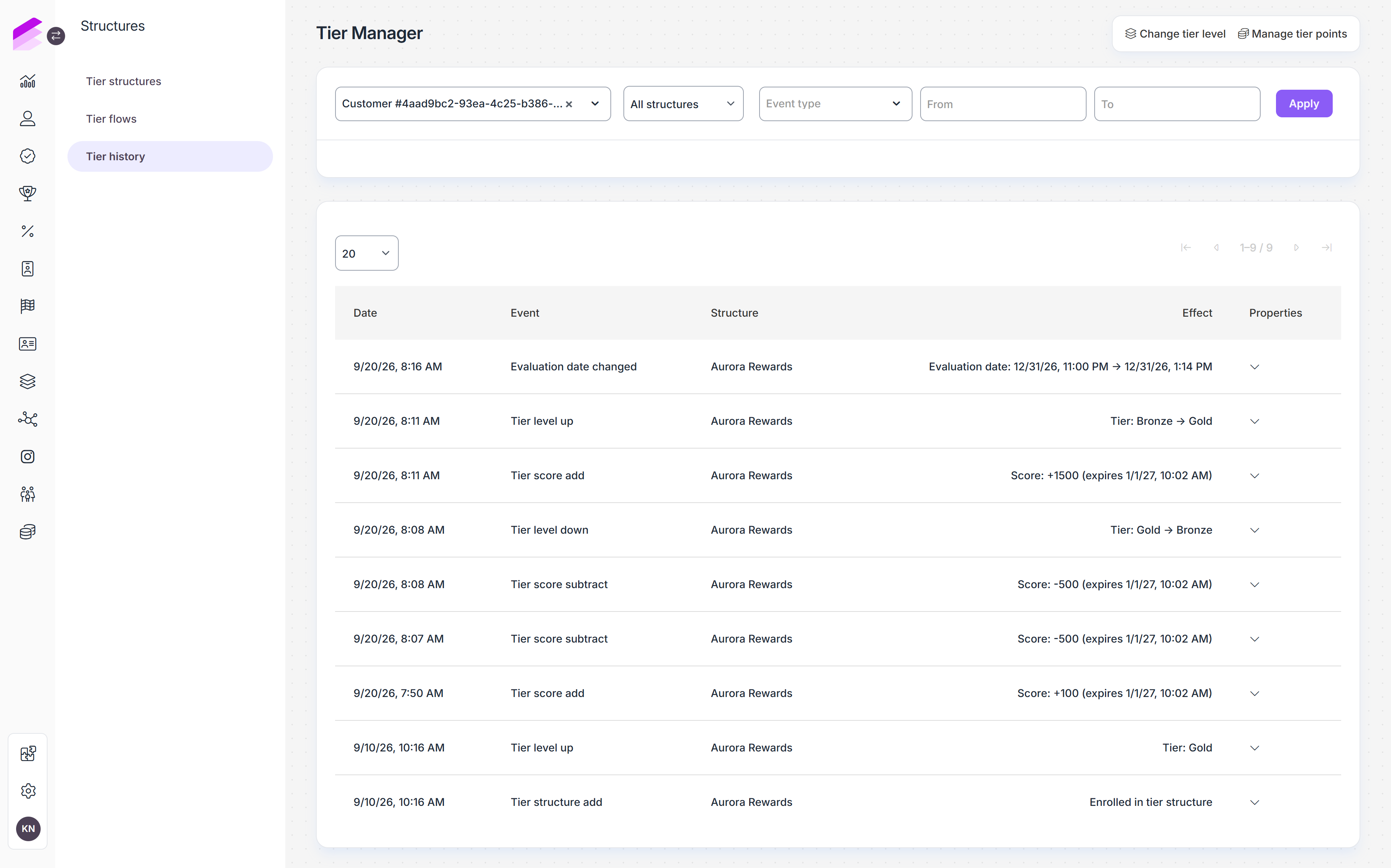
Tier history provides a customer-level view of Tier Manager activity. It shows how a customer's tier score and tier level changed and provides operational actions for users with Tier Manager Support access.
Reviewing a customer's tier history
Open Tier Manager > Tier history
Search for a customer by name or ID
Select the customer to review their tier-related history
The history includes tier score entries, tier-level changes, enrollment changes, and expiration activity.
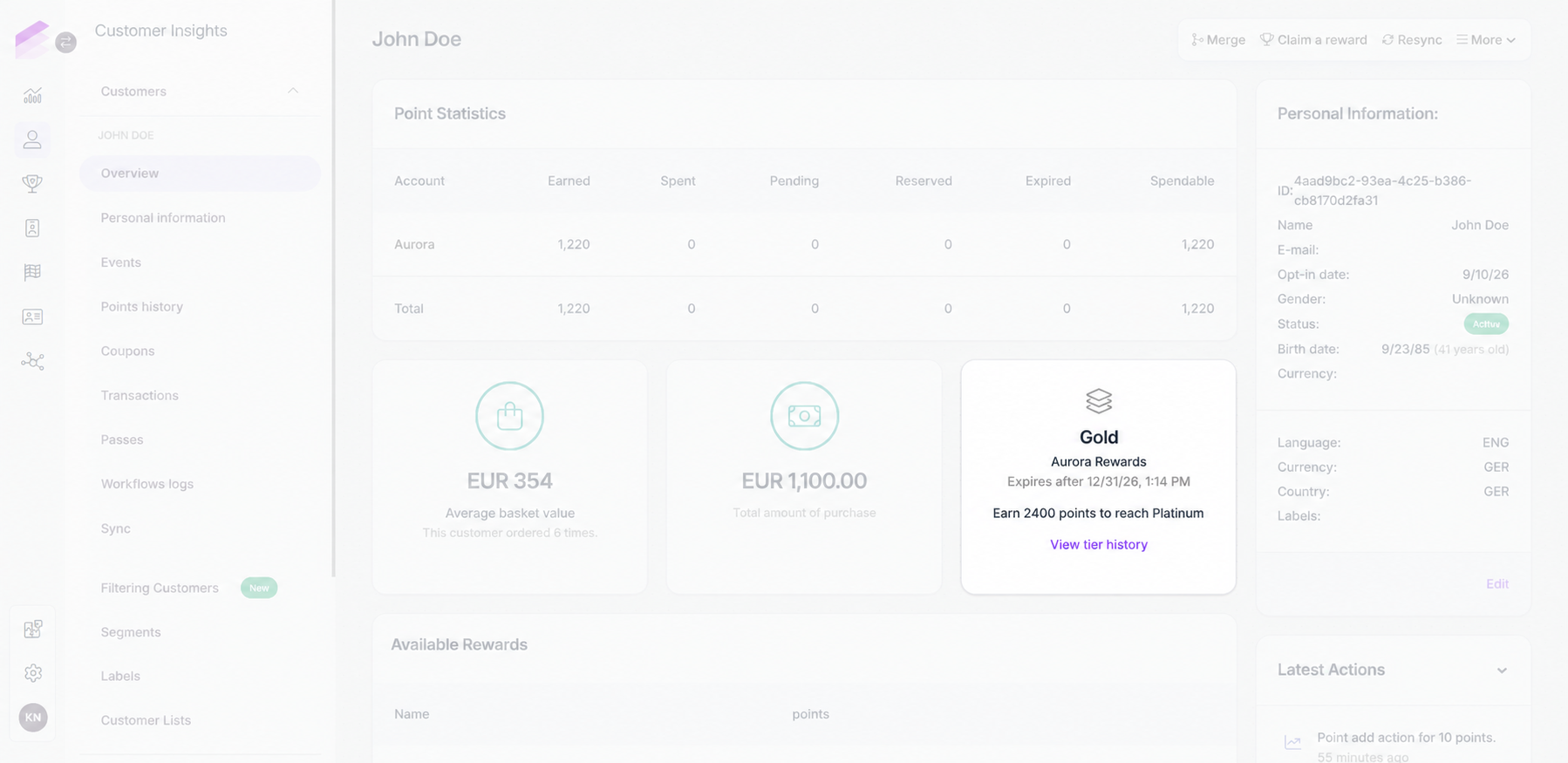
The customer's current tier level and tier score are also available in Customer Insights. These current values come from the tier snapshot, while the tier score ledger remains the source of truth.
Modifying a customer's tier level
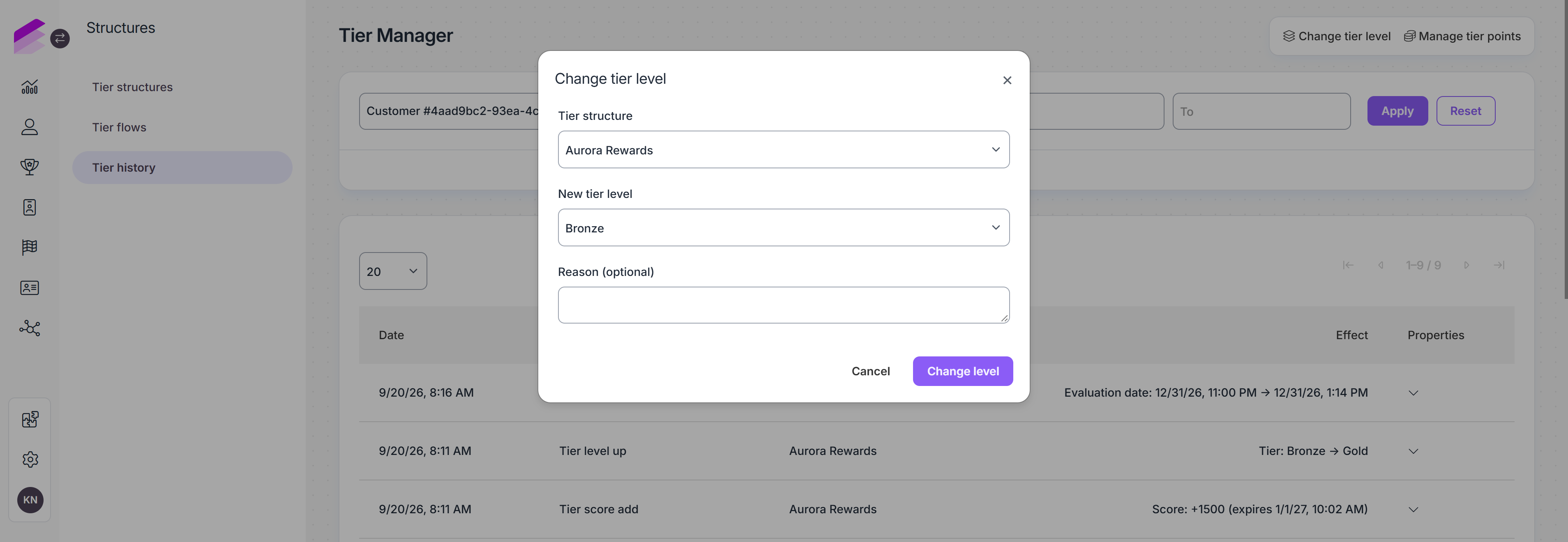
Use the Change tier level button in the upper right corner to move the customer to another level in the selected tier structure. This action changes the customer's tier level regardless of their current tier score and does not change the tier score itself.
Managing a customer's tier score
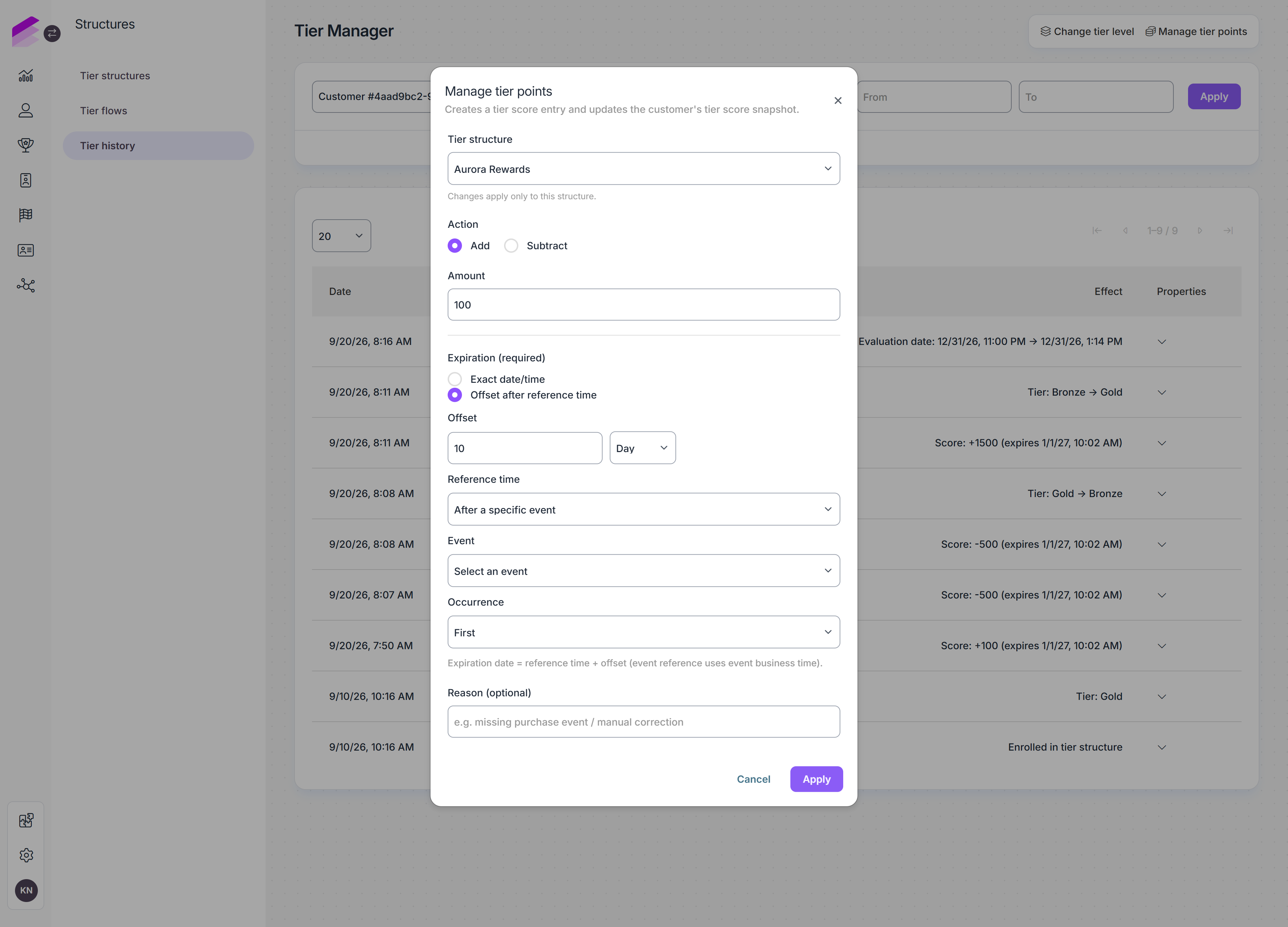
Use the Manage tier points action in the upper right corner to add to or subtract from the customer's tier score and record the reason for the adjustment.
Manual tier score adjustments affect the Tier Manager score only. They do not change the customer’s spendable loyalty points.
Changing the tier score does not recalculate the customer's tier level automatically. Use the Change tier level or the Recalculate Tier Level tier flow node to update the customer’s tier level.
If the tier structure uses an expiry policy, configure the expiration of the recorded adjustment using one of the following options:
Exact date/time: Select the specific date and time when the recorded amount becomes eligible for expiration.
Offset after reference time: Define the expiration date by adding the specified number of days, months, or years to a selected starting time. When Now (processing time) is selected as the reference time, the period starts when Antavo processes the manual adjustment. If an event-based reference time is selected, the period starts from the business time of the referenced event.
Reaching the configured expiration date only makes the recorded amount eligible for expiration. It remains included in the customer's tier score until an Expiration Evaluation node processes it and marks it as expired.
Exporting tier data
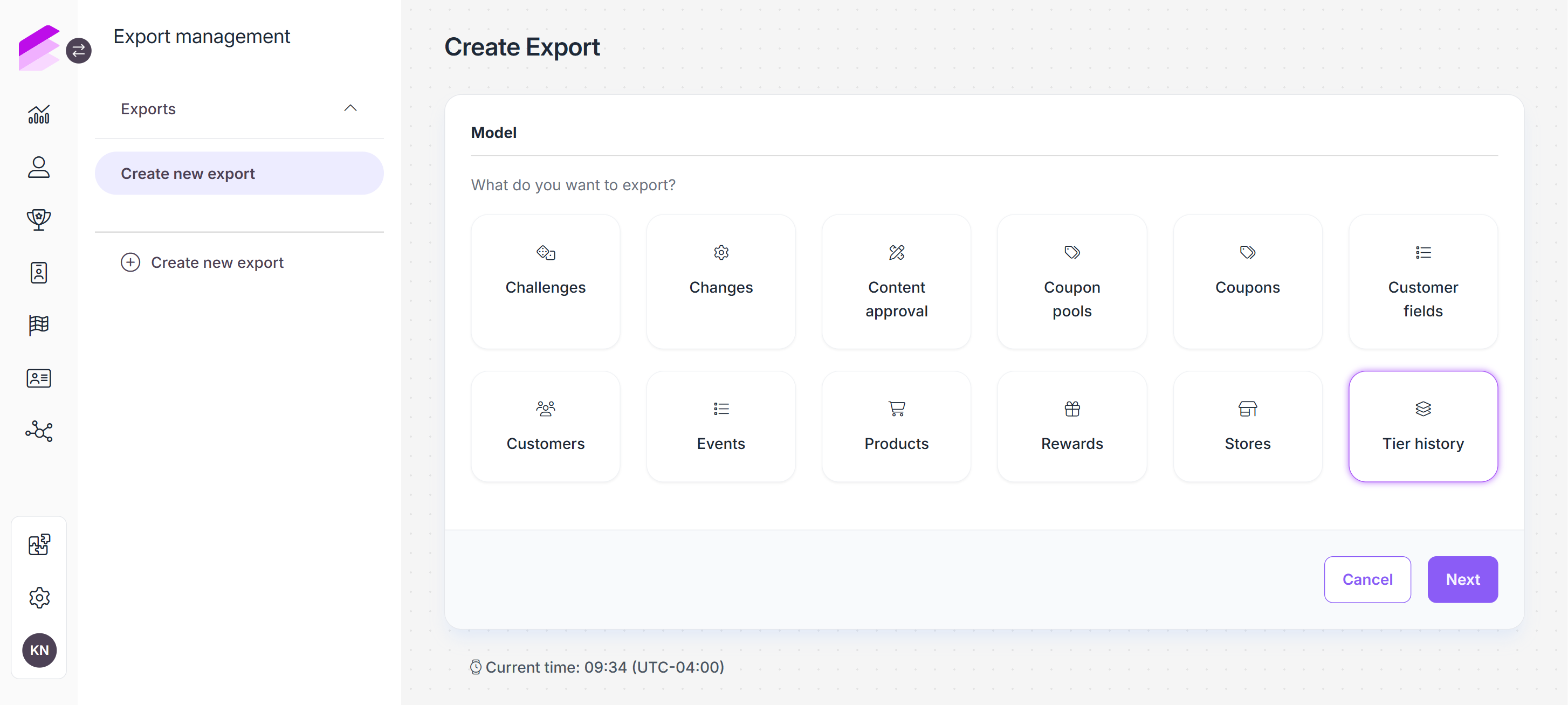
Through Exports, tier data can be included in Customer and Event exports. A dedicated Tier History Export is also available for exporting Tier Manager history.