Salesforce Service Cloud enables customer service agents to work faster and more productively across customer service channels such as phone, email, web chat, and social media. This helps make customer service frictionless, helps businesses improve customer satisfaction scores, and reduces costs.
This document describes the steps necessary to configure Salesforce Service Cloud, then introduces specific supported use cases.
Installing the package
Before installing the application, ensure that the Antavo Loyalty Cloud is fully configured. This includes setting up the required API endpoints, API secrets, modules, and integration components.
The managed package can be installed in both sandbox and production environments from the AppExchange Marketplace.
Salesforce Marketplace install
Open the AppExchange Marketplace from your Salesforce organization by navigating to Setup → Apps → AppExchange Marketplace, then search for the Antavo app.
Alternatively, you can access the Marketplace listing directly by following this link and starting the installation from there.
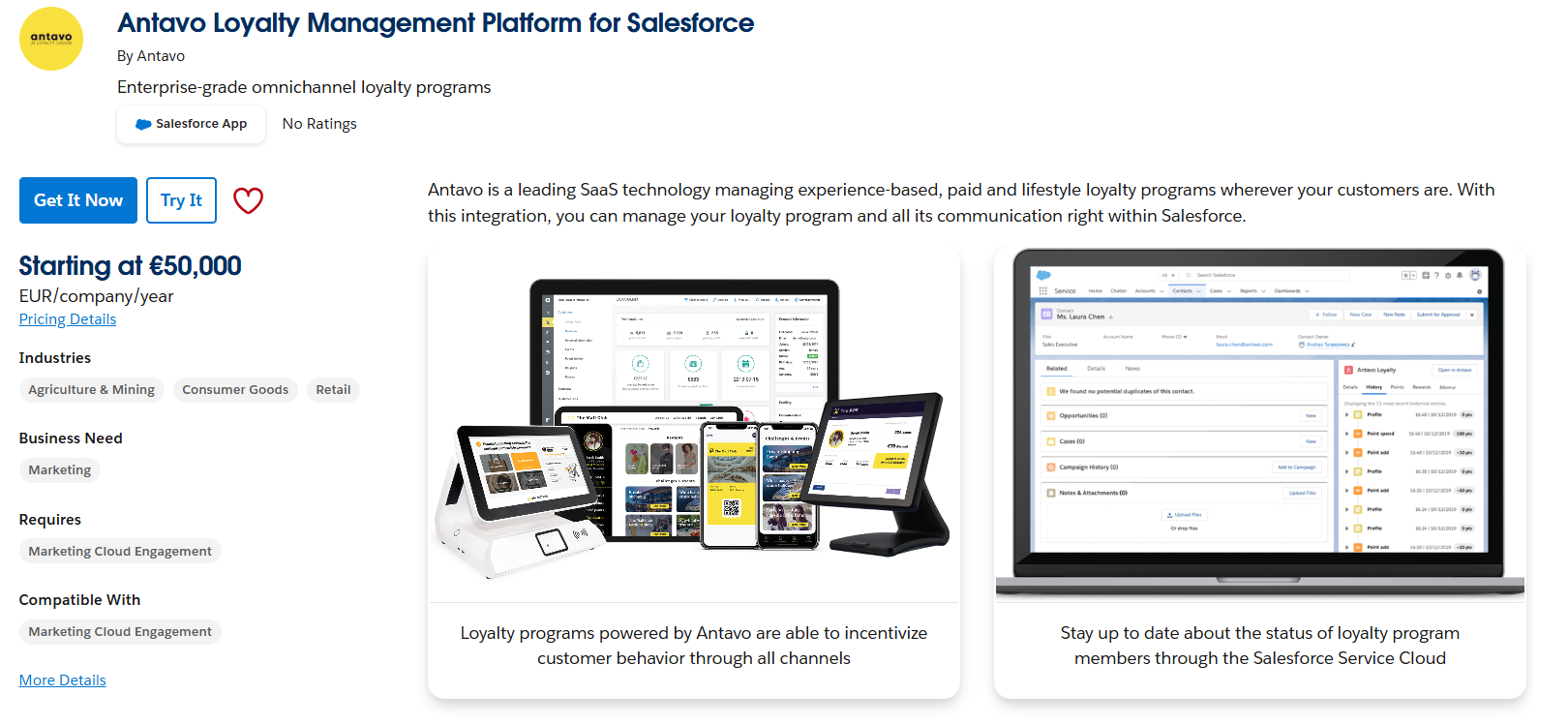
Get the package
Click the Get it Now button. If this is the first time you are installing an application / managed package from the machine you are working on, you might get prompted to log in again by Salesforce. Upon successful login, you will be asked to grant your organization access to the AppExchange API.Confirm your payment details (optional)
In some cases, you might be asked to confirm your payment details before you can proceed with the installation.
Click the Go to AppExchange Website button to confirm your payment details.
Installation is available based on your existing access rights and entitlements to the Antavo Loyalty Engine, no additional action is required in this regard.
Select the installation location
After confirming your payment details, you will be able to select the organization where you want to install the managed package. Both production and sandbox installations are supported. Depending on your choice, you will need to press the Install in Production or Install in Sandbox buttons.
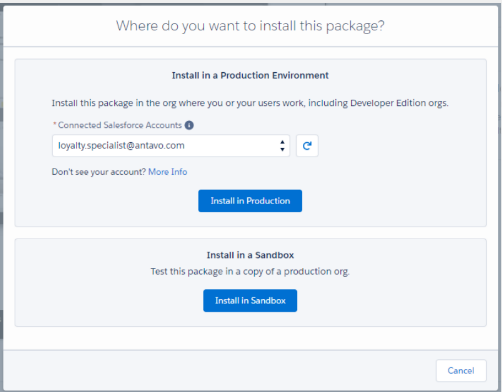
Confirm installation details
On the next screen, you will have the chance to review the details of the installation, including the release name and version number. You will also need to accept the terms and conditions, which can also be viewed directly on the Antavo website.
By clicking Confirm and Install, the installation will begin. Please make sure that you have the necessary privileges to install the package before commencing.
.png "304978c9-d168-4b23-b2ba-b8bec5740e68(1).png")
Post-installation setup
You have now successfully installed the Antavo Loyalty managed package in your Salesforce organization. However, some steps need to be completed before users in your organization can start using the package.
Assign permission sets to relevant users
The package delivers two permission sets:
Antavo Loyalty Admin: Assign this to a System administrator user, who will configure the Antavo integration.
AntavoLoyalty: Assign this to non-admin users, who are expected to manage loyalty programs but not to configure the Antavo integration in Antavo’s Management UI.
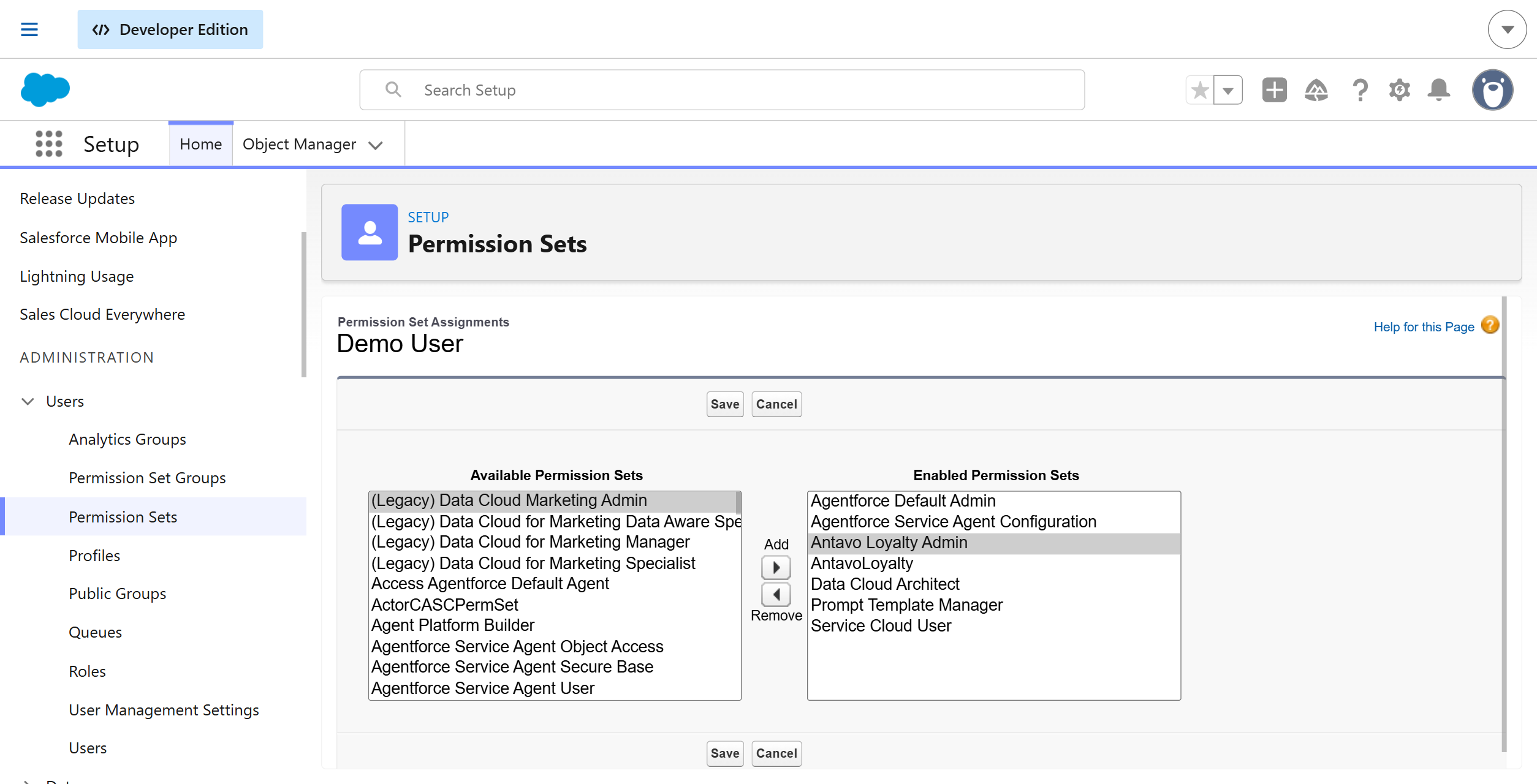
Create the Antavo Loyalty fields on the SObject that will be enrolled in Loyalty programs
Every SObject in Salesforce that should participate in an Antavo loyalty program must be configured with the required fields. All fields that will be synchronized with Antavo must exist on the relevant SObjects before configuring field mappings.
Additional details about synchronization mappings are described in the Mapping Configuration section of this document.
The Salesforce integration supports Antavo’s Multi-accounts and Tiers modules in Antavo. To use these modules, the following must be configured in Antavo:
Multi Accounts: An account must be set up.
Tiers: A tier structure with tier levels must be configured for the tier structure.
If these modules are not enabled or used in your Antavo environment, you can skip creating the related Salesforce fields shown in the examples below.
Single SObject Configuration
If you want to enroll a Customer__c Salesforce object in an Antavo Loyalty program, create the required Antavo Loyalty fields on the Customer__c object before configuring mappings.
First_Name__cLast_Name__cDoB__cEmail__cLoyalty_OptIn__cLoyalty_OptIn_Date__cLoyalty_Status__cLoyalty_Last_Synced__c- this field must not be mapped for synchronization with AntavoLoyalty_Claimed_Rewards__cLoyalty_{account id}_Earned_Points__cLoyalty_{account id}_Expired_Points__cLoyalty_{account id}_Spendable_Points__cLoyalty_{account id}_Pending_Points__cLoyalty_{account id}_Reserved_Points__cLoyalty_{account id}_Spent_Points__cLoyalty_Tiers_{tiers structure id}_Level__c
Add all accounts and tier structures with their corresponding IDs.
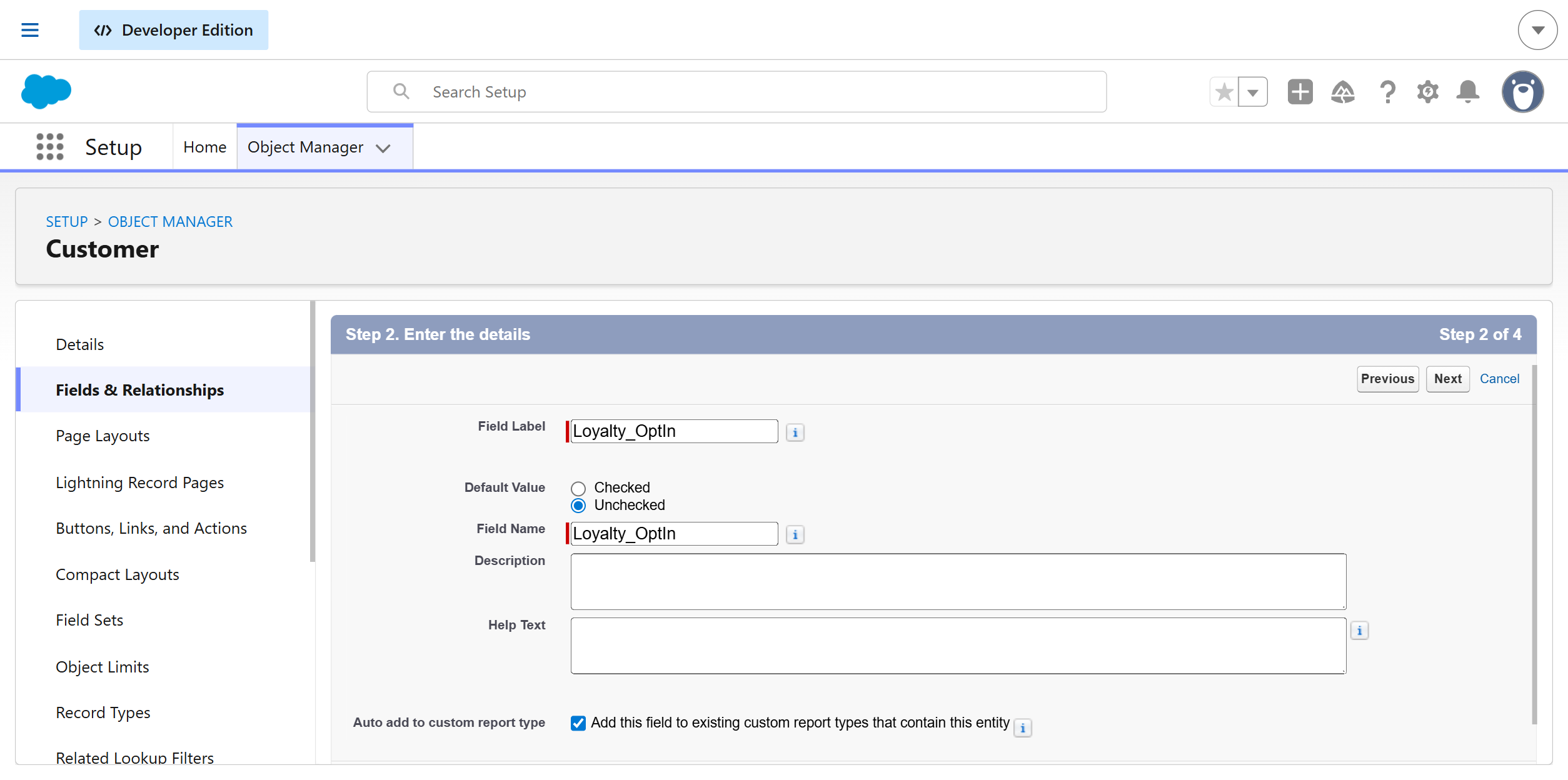
Next, create the required mapping configurations in the Antavo Mapping Configuration tab of the Antavo Loyalty application.
profileAntavo action: Maps the customer profile-related fields of the selected Salesforce SObject.
Multiple SObjects Configuration
Alternatively, several SObjects in Salesforce can be created and their relevant fields then mapped:
Customer__cFirst_Name__cLast_Name__cDoB__cEmail__cSource_System__cDefault_Language__cCountry__cGenderLoyalty_Claimed_Rewards__cLoyalty_OptIn__cLoyalty_OptIn_Date__cLoyalty_Last_Synced__c(Note: this specific field must not be mapped for synchronization with Antavo)etc.
Customer_Registration__cBrand__cRegistered_Service__cCustomer_Status__cDouble_OptIn_State__cPreferred_Store__cSubscription_Type__cetc.
Checkout__cTranslation_ID__cTotal__cCoupon__cIP_Address__cUser_Agent__cSource__cetc.
Checkout_Item__cTransaction_ID__cTotal__cProduct_ID_cProduct_Name__cProduct_URL__cQuantity__cPoints_Rewarded__cSubtotal__cPrice__cDiscount__cPoints_Capped__cetc.
Add Antavo SObject tabs to the Antavo Loyalty Application
Add all Salesforce SObjects related to your Antavo Loyalty integration to the Antavo Loyalty application so users can access all loyalty-related information from one place.
To configure this:
Navigate Setup → Apps → App Manager
Locate the Antavo Loyalty application edit interface
Open the Navigation Items section
Add the relevant SObject tabs to the Navigation Items list
Click Save
Configure the Antavo Settings
Navigate to Antavo Loyalty → Antavo Settings and configure the following:
Antavo API credentials
Enter the API credentials obtained from the Antavo Loyalty Engine Management UI under Settings → API tab.
The API Secret is only displayed when credentials are generated. Please contact the team member who has access to this information.Email recipients
Configure one or more email recipients who should receive notifications when the DeleteLogsScheduler job removes accumulated log records.HTTP Callout Max Retry Count
Define the maximum number of retry attempts for failed HTTP requests sent to Antavo.
Each failed retry increments theFailed_Callout__c.Attempts_Count__cvalue. Once the configured retry limit is reached, no additional retries are attempted, and an email notification is sent to the configured recipients.HTTP Request Logging
Enable logging all HTTP requests, including successful ones. This can help with troubleshooting and debugging, but it may generate a large number of log entries that should be reviewed and cleaned up regularly.
After completing the configuration, click Save.
Connect your Antavo instance to your Salesforce organization
Configure authorization in Antavo
The Salesforce Service Cloud integration supports the following authorization flows:
Web Server: The default flow used by existing connections. A Salesforce user must log in and authorize the connection. The connected app must also include the Antavo callback URL as an approved redirect URL.
Client Credentials: A backend-to-backend authorization flow that uses app-level credentials. It does not require a Salesforce user to log in or an Antavo callback URL to be added to the Salesforce app.
Existing Web Server Flow connections and their synchronization mechanism continue to work without changes.
To connect the integration:
In the Management UI of the Loyalty Engine, navigate to Modules → Salesforce Sales Cloud
Select an Authorization Flow
Complete the configuration based on the selected flow, as described below
Web Server Flow
This flow requires a Salesforce user to authorize the connection. Subsequent record modifications made through the connection are attributed to that user.
Select Web Server in the Authorization Flow dropdown
Enter the Client ID and Client Secret of the connected app distributed with the Antavo Loyalty package. For these credentials, contact the Antavo Service Desk.
Enable the Sandbox option if you are connecting a Salesforce sandbox organization
Click Connect
Log in to your Salesforce organization and authorize the connection
Learn more about the OAuth 2.0 Web Server Flow in the Salesforce documentation.
Client Credentials Flow
Before connecting, create or configure a Salesforce app with the Client Credentials Flow enabled. The credentials used for this flow are different from those used for the Web Server Flow.
Select Client Credentials in the Authorization Flow dropdown
Enter the Client ID and Client Secret of the Salesforce app configured for the Client Credentials Flow
Enter the Instance URL of your Salesforce organization, for example
https://your-domain.my.salesforce.comClick Connect
No Salesforce login or redirect URL configuration is required during connection.
Antavo automatically requests a new access token if the current token is invalid or has expired and retries the affected synchronization requests.
Learn more about the OAuth 2.0 Client Credentials Flow in the Salesforce documentation.
Configure field mapping in Antavo
After a successful OAuth authorization in the Loyalty Engine, navigate to the Field Mappings tab of the Service Cloud module interface, where you can map Antavo fields to a Salesforce SObject and its relevant fields and Record Type.
If you are configuring the integration with the Tiers and Multi-accounts module enabled, make sure the tiers and accounts are configured.
Map the following fields:
Customer fields
Default Fields
claimed_rewardslast_syncedoptin_datestatusopt_inaccounts.{account id}.earnedaccounts.{account id}.spendableaccounts.{account id}.pendingaccounts.{account id}.reservedaccounts.{account id}.spentaccounts.{account id}.expiredtiers.tier_{tier structure id}._idtiers.tier_{tier structure id}._id
Add all accounts and tier structures with their corresponding IDs.
Custom Fields
Birthdate
Email
First name
Last name
any other custom field
Mapping the Record Type ID
Fill in the Record Type ID of the mapped SObject that you want to use when newly created records from Antavo are synced to Salesforce.
Use the same Record Type ID value for all field mappings related to the same SObject.
Only provide a Record Type ID if the Salesforce SObject has custom record types configured.
If the SObject only uses the default Master record type in both Salesforce and Antavo, leave the Record Type ID fields empty. However, if the Salesforce SObject contains additional record types, you must specify the Record Type ID in the mapping configuration, even when using the Master record type.
To find the Record Type ID value in Salesforce:
Open Salesforce and click the Gear icon in the top right corner
Select Developer Console
In the Developer Console, navigate to Debug → Open Execute Anonymous Window
Run the following Apex code:
System.debug(
        Schema.SObjectType.Customer__c
                .getRecordTypeInfosByDeveloperName()
                .get('Retail_Customer')
                .getRecordTypeId()
);
Update the values in the example as needed:
Replace
Customer__cwith the API name of your Salesforce SObject.Replace
Retail_Customerwith the API name of the Record Type.
After executing the code, copy the Record Type ID from the Debug log output and use it in the Antavo mapping configuration.
Click Save when you're done.
Configure field mapping in Salesforce
Configure field mappings in Salesforce under Antavo Loyalty → Antavo Mapping Configuration.
You can create separate mapping configurations for the following Antavo actions:
profilecustomer_registrationcheckoutcheckout_itemevent/{custom_event_name}- for any custom event synced to Antavoany additional custom Salesforce SObjects that should be synced to Antavo
For the predefined actions listed above, the value of the Antavo Action field must match the exact values shown here. These mappings are processed explicitly by the integration based on the configured Antavo Action value.
For any additional custom SObjects, the Antavo Action field can contain any custom value.
To create a new mapping configuration, click New on the Antavo Mapping Configuration page. For example, create a new record to configure the Customer Profile (profile) mapping.
SObject Mapping
Customer Profile Mapping (
profile)
Create a new mapping configuration for theprofileAntavo action. This mapping defines which Salesforce SObject represents the Antavo customer profile.You can use any Salesforce SObject for this purpose, but the following values must remain unchanged:
Antavo Action:
profileAntavo Object:
core/customer
Fill in the configuration fields as follows:
SObject
Select the Salesforce SObject whose records should be enrolled in Antavo Loyalty programs.RecordTypes
After selecting the SObject, its available Record Types will appear in the Available list. Move one or more Record Types to the Selected list.If the SObject only has the default Master record type, select the Master record type.
Only records that belong to the selected SObject, and the selected Record Types will display the Antavo Loyalty Lightning component on their record page and be eligible for automatic synchronization with Antavo.
Synchronization only occurs if the field mapped to the Antavo
opt_infield is set toTRUE.In version 2.7 and later of the managed package, historical transactions and other existing Salesforce records cannot be synchronized to Antavo retroactively. Synchronization is triggered only after the customer has enrolled in the loyalty program.
For child objects related to the
profilemapping, such ascustomer_registration,checkout,checkout_item, or custom event objects, all related record types must also be mapped for synchronization.For example, in the
Checkout Item → Checkout → Customerhierarchy, the following conditions must be met:the Checkout Item record type is mapped,
the Checkout record type is mapped,
the Customer record type is mapped,
and the top-level parent object mapped with the profile action is enrolled in Antavo Loyalty.
Default OptIn Status
Enable this if newly created records of the mapped SObject should automatically be enrolled in Antavo Loyalty.
This setting is only relevant for theprofileAntavo action and should not be enabled for other mapping configurations, such as:customer_registrationcheckoutcheckout_item
Active
Enable this option to activate this mapping configuration immediately after saving. Leave it disabled if you want to save the configuration as a draft.
Repeat the same process to configure SObject and field mappings for the other Antavo actions described in this section.
Checkout Transaction Mapping (
checkout)Antavo Action:
checkoutAntavo Object:
core/transaction
Checkout Transaction Item Mapping (
checkout_item)Antavo Action:
checkout_itemAntavo Object:
The value of this field is not used because Checkout Transaction Items are never synced to Antavo independently. Instead, they are always synced as nested records under their parent Checkout Transaction. You can enter any placeholder value, for exampleirrelevant.
Customer Registration Mapping (
customer_registration)Antavo Action:
customer_registrationAntavo Object:
custom/customer_registration
Field Mapping
To map Salesforce fields to Antavo fields for a selected mapping configuration, click New Field Mapping. Each field mapping connects a Salesforce SObject field to its corresponding Antavo field.
For Customer (profile) mappings, commonly used Antavo fields include:
idfirst_namelast_namebirth_dateemailopt_inloyalty_opt_in_dateloyalty_statusloyalty_claimed_rewardsany additional Antavo fields you want to sync
Do not map the loyalty_last_synced Antavo field to any Salesforce field. This field is updated automatically during synchronization from Antavo to Salesforce. Mapping it in both directions would create an endless synchronization loop.
Example of the loop:
A Salesforce user updates a Customer field, such as
emailThe Salesforce AFTER UPDATE trigger sends the update to Antavo
Antavo updates the
loyalty_last_syncedfieldThe Antavo → Salesforce sync updates the Salesforce record
The Salesforce AFTER UPDATE trigger runs again
The record is synced back to Antavo repeatedly
After configuring all required field mappings, click Save.
Finding Antavo Field Names:
Customer fields: Navigate to Settings → Customers → Fields. Use the value in the Unique ID column as the Antavo field name.
Checkout/CheckoutItem fields: Refer to the developer documentation (checkout, checkout_item). Use the values from the Name column as the field names.
Custom event fields: Navigate to Modules → Custom Events. Open a custom event and use attribute names as the Antavo field names.
Custom entity fields: Navigate to Modules → Custom Entities. Open the custom entity and use attribute names as the Antavo field names.
Required Field Mappings by Antavo Action:
profileidemailfirst_namelast_nameopt_in
checkoutid- map to SalesforceIdcustomer- map to the lookup field referencing the parent customer SObjecttotalaccount- map to the field containing the Antavo Point Account identifier
checkout_itemid- map to SalesforceIdproduct_nameproduct_idquantitypricetotalsubtotal
customer_registrationid- map to SalesforceIdcustomer- map to the lookup field referencing the parent customer SObjectbrand
Custom events
event/customer- map to the lookup field referencing the parent customer SObjectevent/account- map to the field containing the Antavo Point Account identifiermap all additional event attributes defined in Antavo
Submit events using Salesforce external IDs
Unlike Entities API requests, where the external ID field name is provided in a request header, Events API requests include it in the request body using the external_id attribute.
When submitting an event for a Salesforce customer through the Events API, enter the Salesforce record ID in the customer attribute and add salesforcesc as the external_id attribute.
Do not combine the external ID field name and the Salesforce record ID in the customer attribute (salesforcesc:a07Pu00000moB8xIAE). For example, use:
{
  "customer": "a07Pu00000moB8xIAE",
  "external_id": "salesforcesc",
  "action": "wheel_spin",
  "account": "account01",
  "data": {
    "wheel_name": "Medium Slow Wheel",
    "revs_per_minute": 170
  }
}
Field value substitutions
Field value substitutions allow you to map different field values between Salesforce and Antavo when the accepted values do not match. This is commonly used for picklist or enumeration fields.
For example:
Salesforce values: M and F
Antavo values: Male and Female.
In this case, you can configure substitutions so that:
Mis sent to Antavo asMaleFis sent to Antavo asFemale
To configure field value substitutions:
Open the relevant Mapping Configuration
In the Mapped Fields table, locate the field you want to configure
Click the dropdown arrow at the end of the row
Select: Map Values from the context menu
A modal window will open where you can define Salesforce values and their corresponding Antavo values. Value substitutions are only applied to the specific field where they are configured. Only exact value matches are replaced, partial value substitutions are not supported.
Create a Trigger in Salesforce
You need to create a trigger on the mapped SObject in Salesforce.
You have two options here:
Option 1: In case there isn't already a trigger created for the mapped SObject
Create a trigger and name it after your SObject, e.g.: CustomerTrigger.
Paste the following code snippet in your trigger declaration:
trigger CustomerTrigger on Customer__c (before insert,after insert, after update) {
 if(Trigger.isBefore){
   if (Trigger.isInsert) {

antavo.AntavoTriggerHandler.onBeforeInsert(Trigger.operationType, Trigger.new, Trigger.newMap, Trigger.old, Trigger.oldMap);
      }
    }
    if (Trigger.isAfter) {
        if (Trigger.isInsert) {

antavo.AntavoTriggerHandler.onAfterInsert(Trigger.operationType, Trigger.new, Trigger.newMap, Trigger.old,
Trigger.oldMap);
        }
        if (Trigger.isUpdate) {

antavo.AntavoTriggerHandler.onAfterUpdate(Trigger.operationType, Trigger.new, Trigger.newMap, Trigger.old,
Trigger.oldMap);
}
}
}
Option 2: You already have an existing trigger on the SObject that you need Antavo-integrated
In this case, you'll be adding three lines to your existing trigger's declaration, for each:
Before inserting: Add the following line of code to the relevant block in your existing trigger declaration:
antavo.AntavoTriggerHandler.onBeforeInsert(Trigger.operationType, Trigger.new, Trigger.newMap, Trigger.old,Trigger.oldMap);
After inserting: Add the following line of code to the relevant block in your existing trigger declaration:
antavo.AntavoTriggerHandler.onAfterInsert(Trigger.operationType, Trigger.new, Trigger.newMap, Trigger.old, Trigger.oldMap);
After update: Add the following line of code to the relevant block in your existing trigger declaration:
antavo.AntavoTriggerHandler.onAfterUpdate(Trigger.operationType, Trigger.new, Trigger.newMap, Trigger.old, Trigger.oldMap);
Create similar triggers, or add similar lines to existing triggers for the other SObjects that need to be synced to Antavo.
Not all SObjects need to invoke trigger handling on all three trigger operations. Here's a list of commands that must be present in every SObject's trigger per Antavo Action:
profileantavo.AntavoTriggerHandler.onBeforeInsert(Trigger.operationType, Trigger.new, Trigger.newMap, Trigger.old,Trigger.oldMap);antavo.AntavoTriggerHandler.onAfterInsert(Trigger.operationType, Trigger.new, Trigger.newMap, Trigger.old,Trigger.oldMap);antavo.AntavoTriggerHandler.onAfterUpdate(Trigger.operationType, Trigger.new, Trigger.newMap, Trigger.old,Trigger.oldMap);
checkoutNo trigger is needed on the Checkout SObject. The sync is initiated in a trigger on the child Checkout_Item__c SObject
checkout_itemantavo.AntavoTriggerHandler.onAfterInsert(Trigger.operationType, Trigger.new, Trigger.newMap, Trigger.old,Trigger.oldMap);
customer_registrationor any subsequent custom entityantavo.AntavoTriggerHandler.onAfterInsert(Trigger.operationType, Trigger.new, Trigger.newMap, Trigger.old,Trigger.oldMap);antavo.AntavoTriggerHandler.onAfterUpdate(Trigger.operationType, Trigger.new, Trigger.newMap, Trigger.old,Trigger.oldMap);
Custom events
antavo.AntavoTriggerHandler.onAfterInsert(Trigger.operationType, Trigger.new, Trigger.newMap, Trigger.old, Trigger.oldMap);
Drag the antavoLoyaltyWidget Lightning Web component on the SObject detail page
Do not use the deprecated
AntavoLoyaltyDataAura component, use theantavoLoyaltyWidgetLightning Web Component instead.
To add the component:
Open a record detail page for the mapped SObject
Click the Gear icon and select Edit Page
In the Lightning App Builder, open the Components tab on the left
Under Custom - Managed, locate the
antavoLoyaltyWidgetcomponentDrag the component into the page layout area
Click Save
If prompted, click the Activate button to make the page available to users
If the activation dialog does not appear automatically, click the Activation button
Select Assign as Org Default
Choose Desktop and phone
Click Save
Once the changes are saved, click the Arrow button in the upper-left corner of the Lightning App Builder to return to the record page.
Enroll customers in the loyalty program
Customers can be enrolled in the following ways:
Click the Opt in button in the Antavo Loyalty widget for an existing Salesforce customer who is not yet a loyalty member.
Set the Salesforce Boolean field mapped to the Antavo
opt_infield toTRUEin the customer details.Create a new Salesforce customer with loyalty enrollment enabled. If Default OptIn Status is enabled for the
profilemapping, the new customer is enrolled automatically.
When using the Salesforce Service Cloud integration, manage the customer's loyalty opt-in status in Salesforce. Enrolling a customer directly in Antavo does not automatically update the corresponding Salesforce opt-in field or related custom entity. As a result, Salesforce may continue to display the customer as not enrolled.
Download Antavo logs from Salesforce
Antavo logs stored in Salesforce can be exported as a CSV file using Salesforce Workbench.
Salesforce Workbench is not an official Salesforce product and its interface may change independently of Antavo.
To download the logs:
Navigate to Salesforce Workbench
Select Sandbox or Production, depending on the Salesforce environment you want to investigate
Accept the terms of service
Click Login with Salesforce and authorize Workbench using your Salesforce credentials
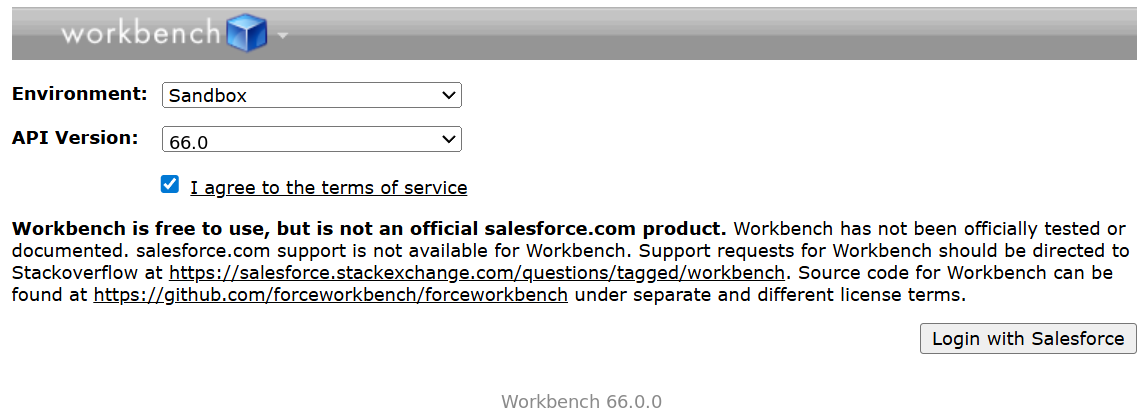
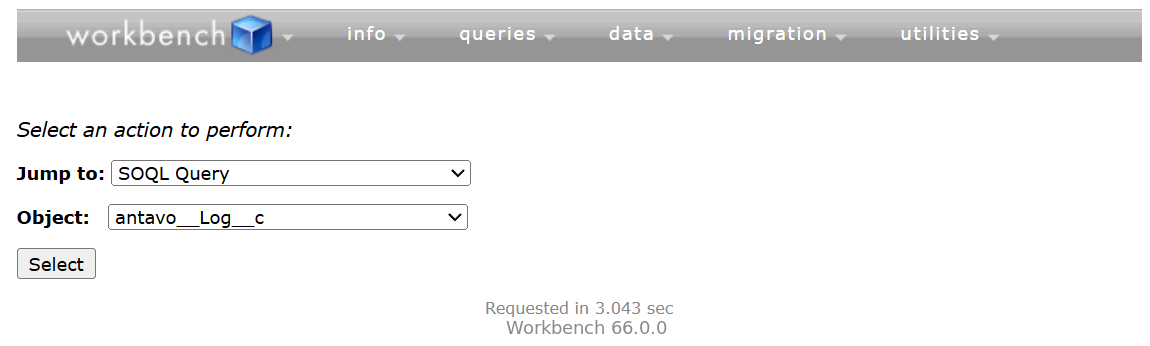
In Workbench, navigate to Queries → SOQL Query
Select the
antavo__Log__cobject
Select the fields you want to include in the export
Initially, select List under View as so that you can review the returned records
Enter or modify the SOQL query based on the period you want to investigate. For example:
SELECT
  antavo__Data__c,
  antavo__Subject__c,
  antavo__User__c,
  CreatedById,
  CreatedDate,
  Id,
  IsDeleted,
  LastModifiedById,
  LastModifiedDate,
  LastReferencedDate,
  LastViewedDate,
  Name,
  OwnerId,
  SystemModstamp
FROM antavo__Log__c
WHERE CreatedDate > 2025-09-29T15:00:00+03:00
  AND CreatedDate < 2025-09-29T15:20:00+03:00
Datetime values used in the query must include a time zone. You can enter the time displayed on the Logs tab and include the time zone offset configured in the Salesforce user settings, or convert the time to UTC and use the
Zsuffix.
Click Query and verify that the expected records are returned
Change View as to Bulk CSV and run the query again
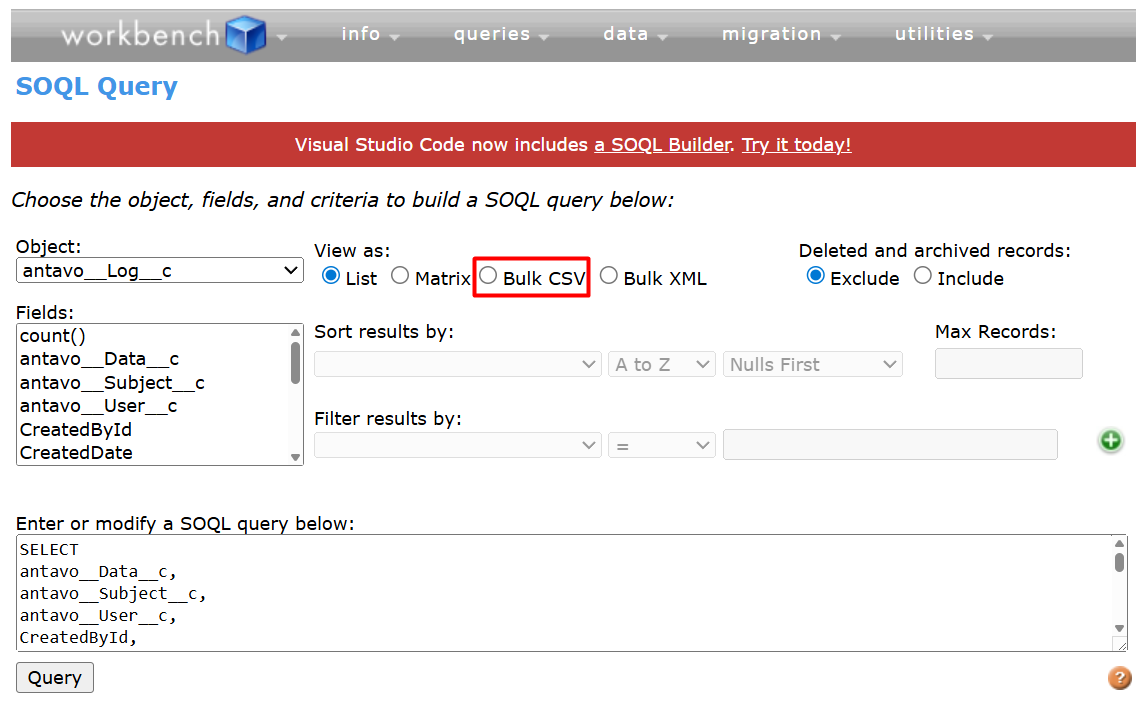
Wait for Salesforce to complete the Bulk API job
Click the download button next to the completed batch to download the generated CSV file

Schedule jobs in Salesforce
Schedule a job to delete log records
Create a scheduled job to regularly clean up stored log records.
This scheduled job deletes log records older than 30 days and sends the deleted logs as an email attachment to the recipients configured in Antavo Settings.
To configure the job:
Navigate to Setup → Custom Code → Apex Classes
Click Schedule Apex
Configure the job with the following values:
Job Name:
Delete LogsApex Class:
DeleteLogsSchedulerFrequency:
Monthly
Configure the remaining schedule settings as needed. It is recommended to choose a Preferred Start Time outside of active business hours.
Click Save
To verify the job was scheduled successfully, navigate to Setup → Environments → Jobs → Scheduled Jobs and confirm that a Delete Logs scheduled job appears in the list.
Schedule a job to retry failed callout requests
The FailedCalloutsRetryScheduler job retrieves accumulated failed requests and retries them. Before scheduling the job, configure the retry mechanism:
Navigate to Antavo Loyalty → Antavo Settings
Enter the maximum number of attempts in the HTTP Callout Max Retry Count field
Click Save
.png)
The job must run more frequently than once per day. Since the Salesforce Schedule Apex UI only supports Monthly, Weekly, or Daily intervals, the job must be scheduled using Anonymous Apex.
To configure the job:
Open the Developer Console.
Navigate to Debug → Open Execute Anonymous Window
Run the following Apex code:
antavo.FailedCalloutsRetryScheduler fcrScheduler =
    new antavo.FailedCalloutsRetryScheduler();
String schInterval = '0 0 * * * ?';
System.schedule(
   'Retry Failed Callouts Hourly',
   schInterval,
   fcrScheduler
);
Click Execute
This configuration schedules the retry job to run hourly. The 0 0 * * * ? CRON expression is an example and can be changed by a Salesforce administrator if a different execution frequency is required.
After executing the code, verify the scheduled job under Setup → Environments → Jobs → Scheduled Jobs and confirm that a Retry Failed Callouts Hourly scheduled job appears in the list.
.png)