Coupon Import is one of the import models available in the Imports module and is designed for adding large numbers of coupons to existing coupon pools through a structured import process.
The import includes pre-processing, field mapping, and validation to help identify file structure and data errors before the coupons are imported.
Coupon Import can only be used with existing, non-aggregated coupon pools that have Uploaded as their source. Coupons inherit attributes shared with the coupon pool, while coupon-specific attributes can be populated from the import file. The import is intended for creating new coupons, existing coupons cannot be updated through this process.
If an imported coupon is assigned to an existing customer, a coupon_assign event is registered for the customer.
Creating a new import
To create a new coupon import:
Navigate to the Imports module
Click Create new import in the left sidebar
Select Coupon Import (beta) as the data model
Click Next
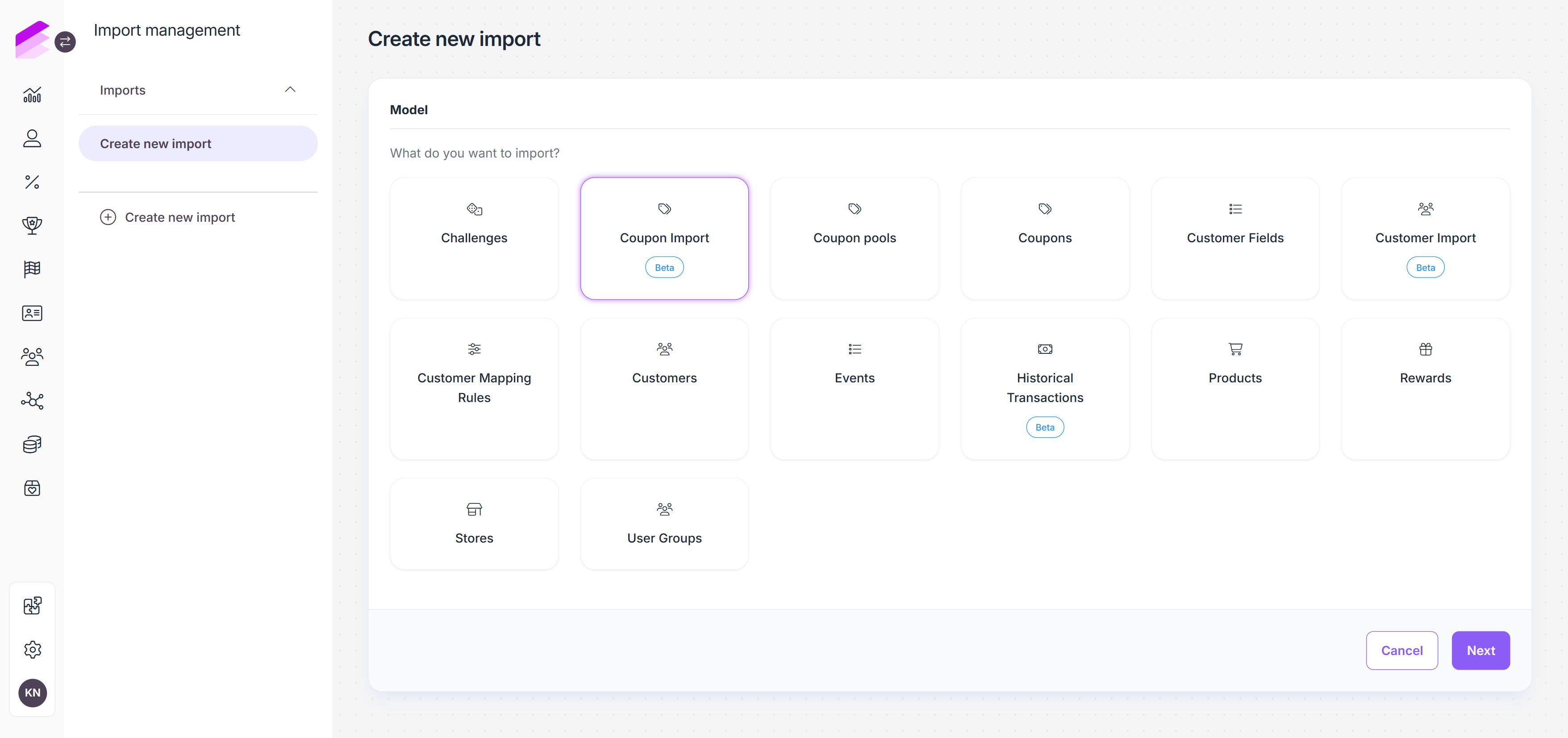
Coupon Import follows a multi-step workflow consisting of file upload, pre-processing, mapping, validation, and import. The available actions become enabled as the preceding steps are completed.
(1).png)
The import can be canceled before the final import process is started.
1. File upload
JSON and CSV file templates are available for download in the File upload step. Use the applicable template when preparing the import file to ensure its structure and fields can be processed correctly.
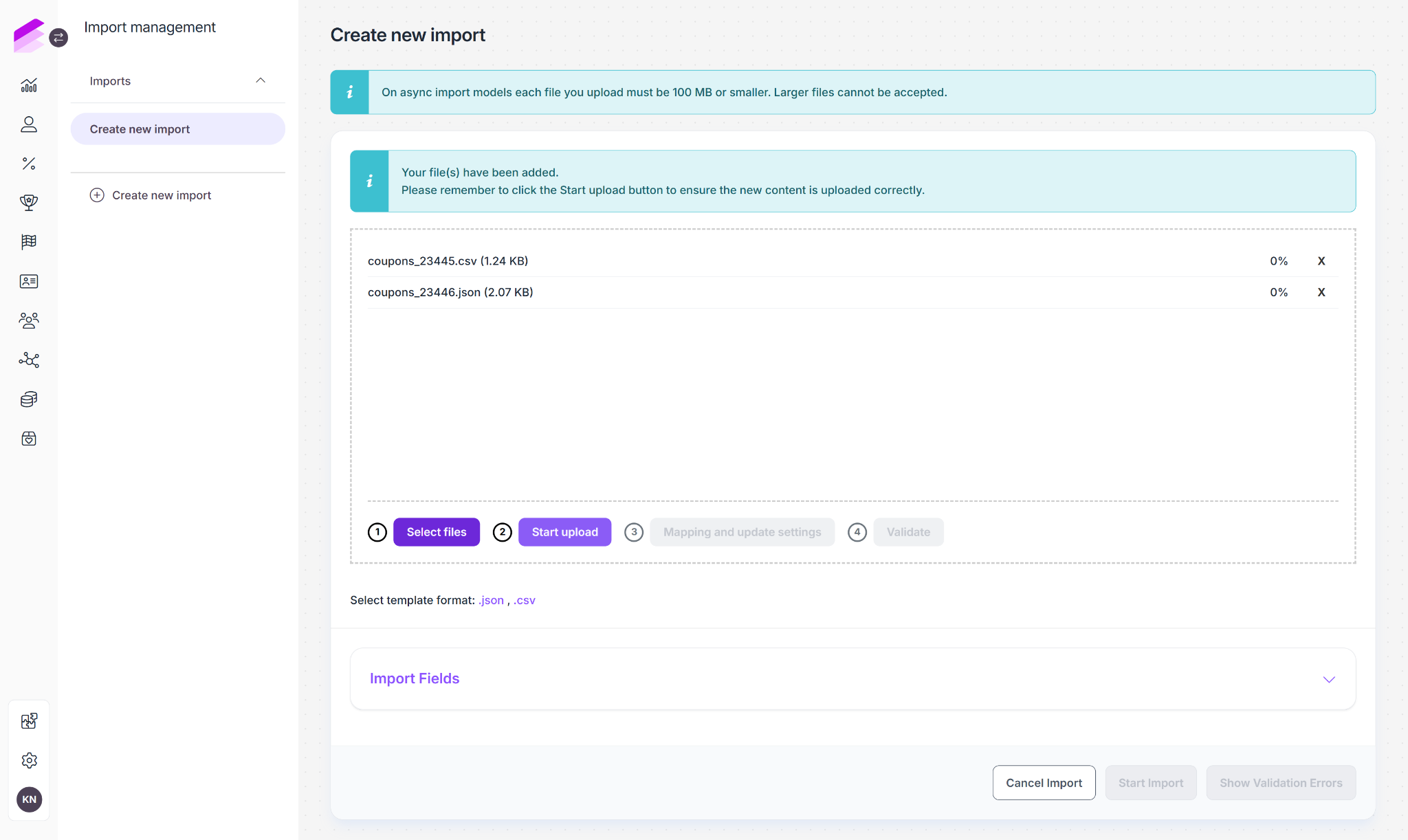
Once the import file is prepared, add one or more CSV or JSON files by clicking Select Files or by dragging and dropping them into the upload area. Each uploaded file can be up to 100 MB in size.
Selecting files adds them to the import but does not start processing them. Click Start upload after the required files have been added.
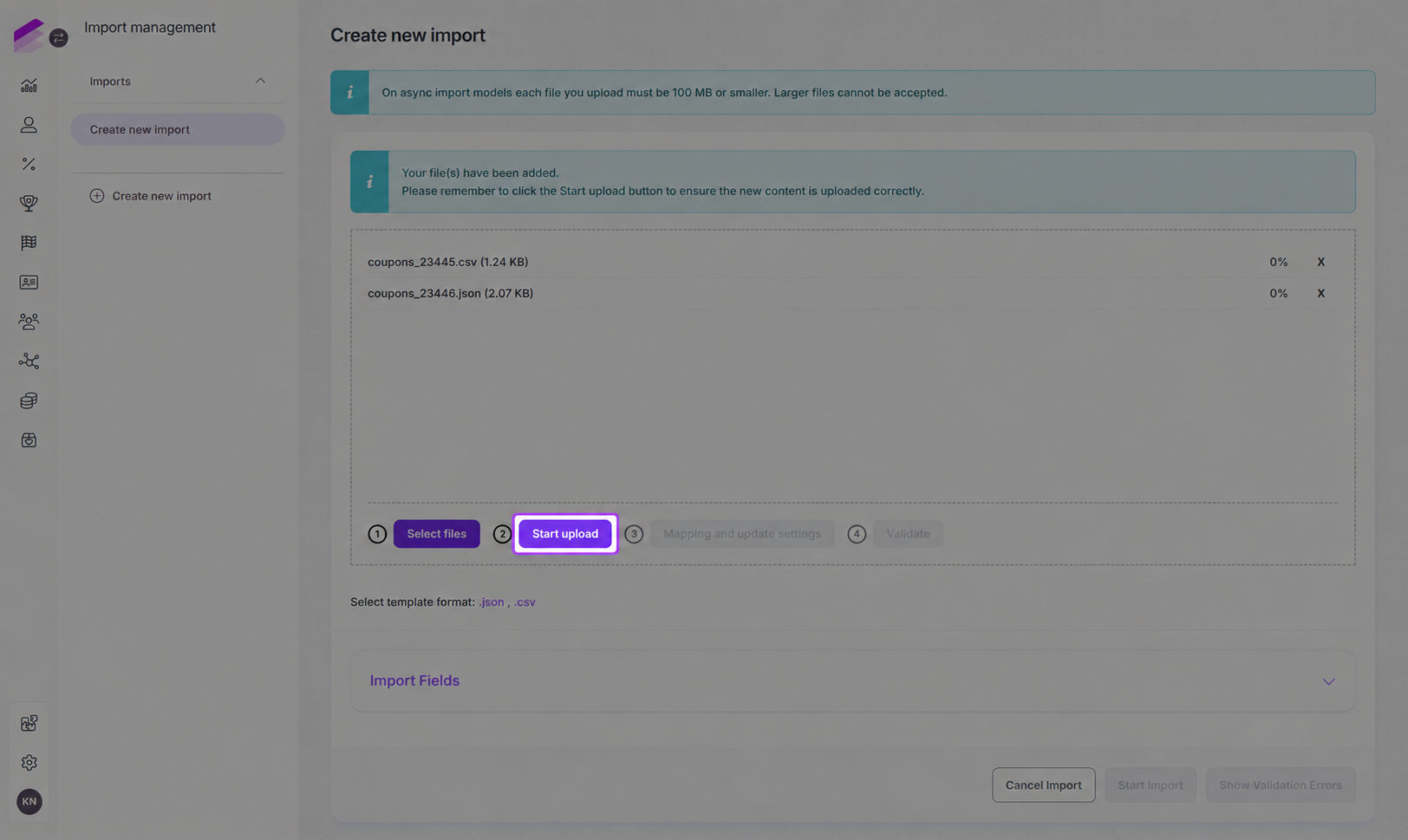
The Import Fields section lists the coupon attributes supported by Coupon import. Only attributes available for import are displayed. Attributes shared between coupons and coupon pools are marked as shared. Their values are controlled by the coupon pool and cannot be configured through the import. Custom coupon attributes that are available for import are also included in the field list.
Coupon Import only supports coupons belonging to an existing coupon pool. The target coupon pool must use Uploaded as its source.
2. Pre-processing
Click Start upload to upload and pre-process the selected files.
During pre-processing, Antavo checks the basic structure of each file and detects its headers for use in the mapping step. These checks determine whether the files can be processed correctly, individual coupon values are validated separately after mapping.
The structural checks include, among others:
the file is not empty,
JSON files contain valid syntax,
CSV header names are not empty,
rows are not empty.
After pre-processing, the status of each uploaded file indicates whether the file can be used in the next step.
✅ - Displayed if no errors were found in the file.🚫 - Displayed if the file contains a structural error.
If any error is detected, an error message is displayed at the top of the page. In addition, the Show validation errors option is available at the bottom of the page, allowing you to review detailed error information.
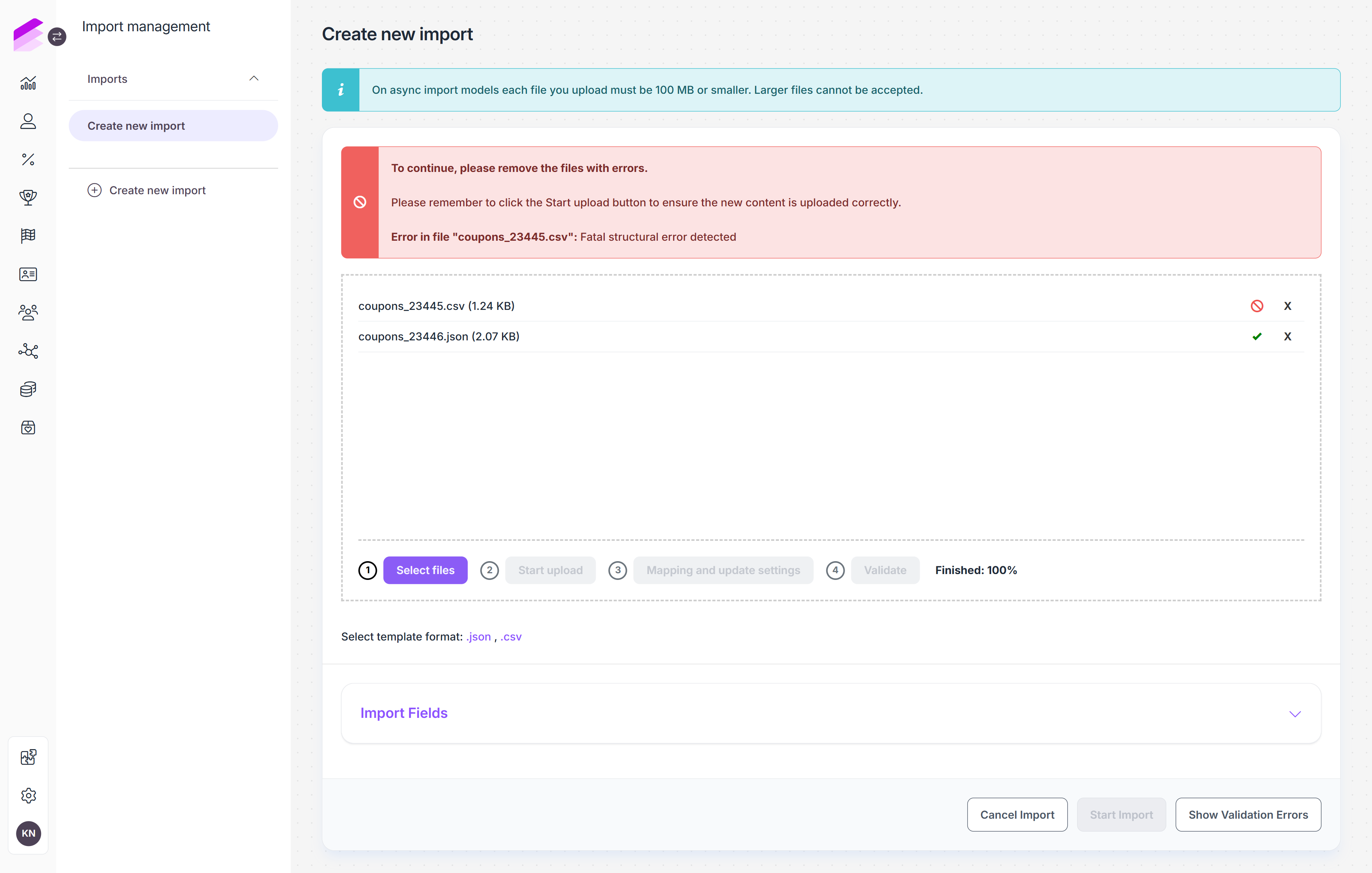
To continue, remove the invalid files using the delete (×) icon, fix the issues in the source files, and upload the corrected versions again. As long as errors are present, you cannot proceed to the next step.
3. Mapping settings
Click Mapping and update settings after pre-processing is complete.
During pre-processing, the headers in the uploaded files are detected automatically. Mapping determines which file headers provide the value for each available coupon attribute.
Shared attributes
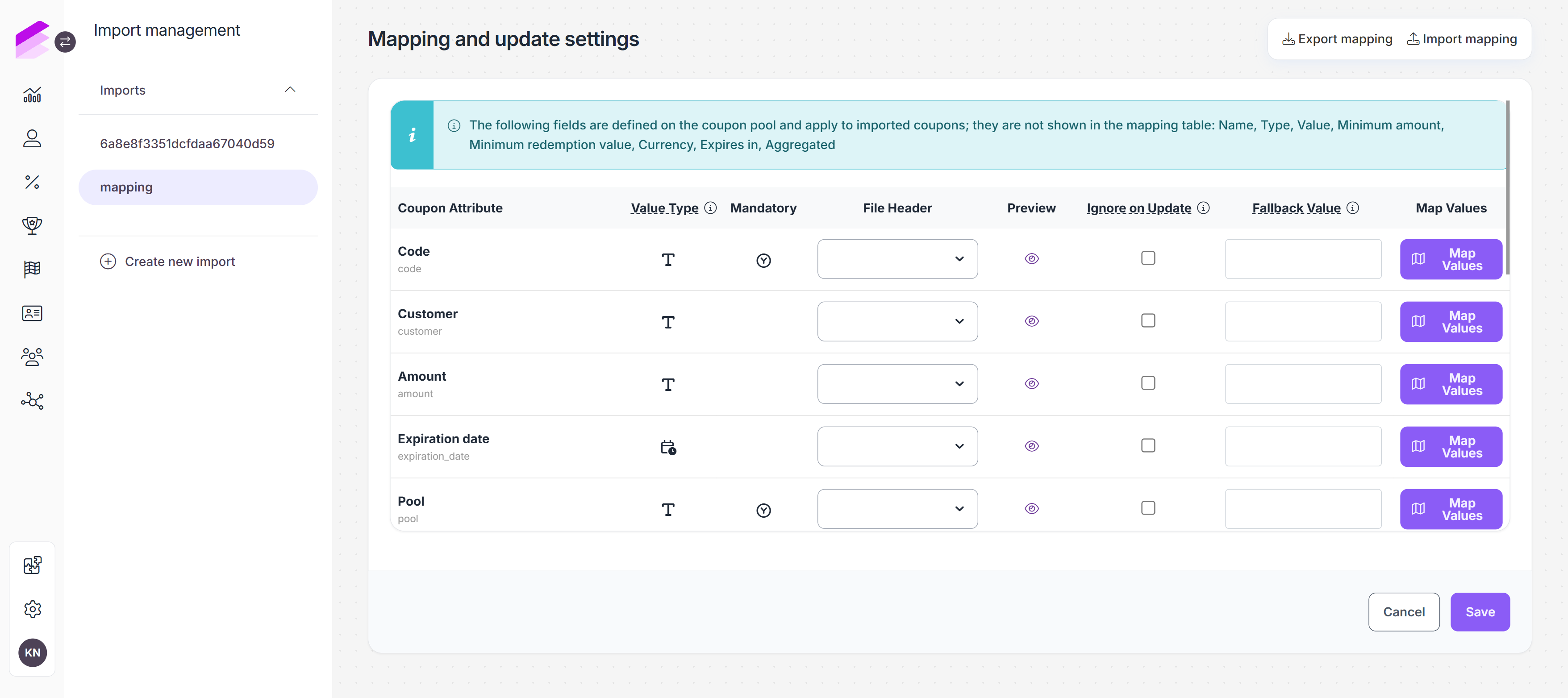
Some coupon attributes are shared with the coupon pool. Their values are defined on the coupon pool and apply to coupons imported into it. Shared attributes cannot be populated or changed through coupon imports. They are excluded from the mapping table and listed in an information box at the top of the page.
The following attributes are currently treated as shared:
Name
Type
Value
Minimum amount
Minimum redemption value
Currency
Expires in
Aggregated
Coupons cannot be linked to rewards or referrals through the import process, so the corresponding attributes are not available for mapping.
Mapping table overview
Each row in the mapping table represents an available coupon attribute that can be populated from the imported files.
The following information and controls are available:
Coupon attribute: The coupon attribute to populate.
Value type: Indicates the expected data type of the attribute, such as string, numeric, datetime, boolean, or select.
Mandatory: Indicates whether a value is required for the attribute.
File header: Selects the column from the uploaded files that provides the value for the coupon attribute. Headers that are already assigned to another attribute are not available for selection.
Preview: Displays sample values from the selected file column to help verify the mapping.
Fallback value: Provides a value when the mapped field is empty in the import file.
Map Values: Defines replacements for incoming values before the coupon is imported.
Only attributes available for import are included in the mapping table. Mandatory attributes must be mapped before the configuration can be saved. If a mandatory field has not been configured, an error is displayed and the mapping settings cannot be saved.
Fallback values
A fallback value can be configured for an attribute when the corresponding value may be missing from the import file. If the mapped field is empty, the fallback value is used during validation and import. Fallback values must match the expected type of the coupon attribute.
For date and datetime attributes, both static and dynamic values can be used.
Supported formats for date and datetime attribute values
Dynamic
Relative base values
todaytomorrowyesterday
Relative offsets
+1 day-1 day+1 week+1 month+1 year
Combined expressions
+1 day 14:00tomorrow 10:00next monday 09:00
Weekday expressions
mondaynext mondaylast friday
Special expressions
first day of this monthlast day of next month
Static
Fixed formats
2026-04-072026-04-07T14:30:00Z
Alternative formats
Apr 7, 2026
Unix timestamp
@1712491800
Value mapping
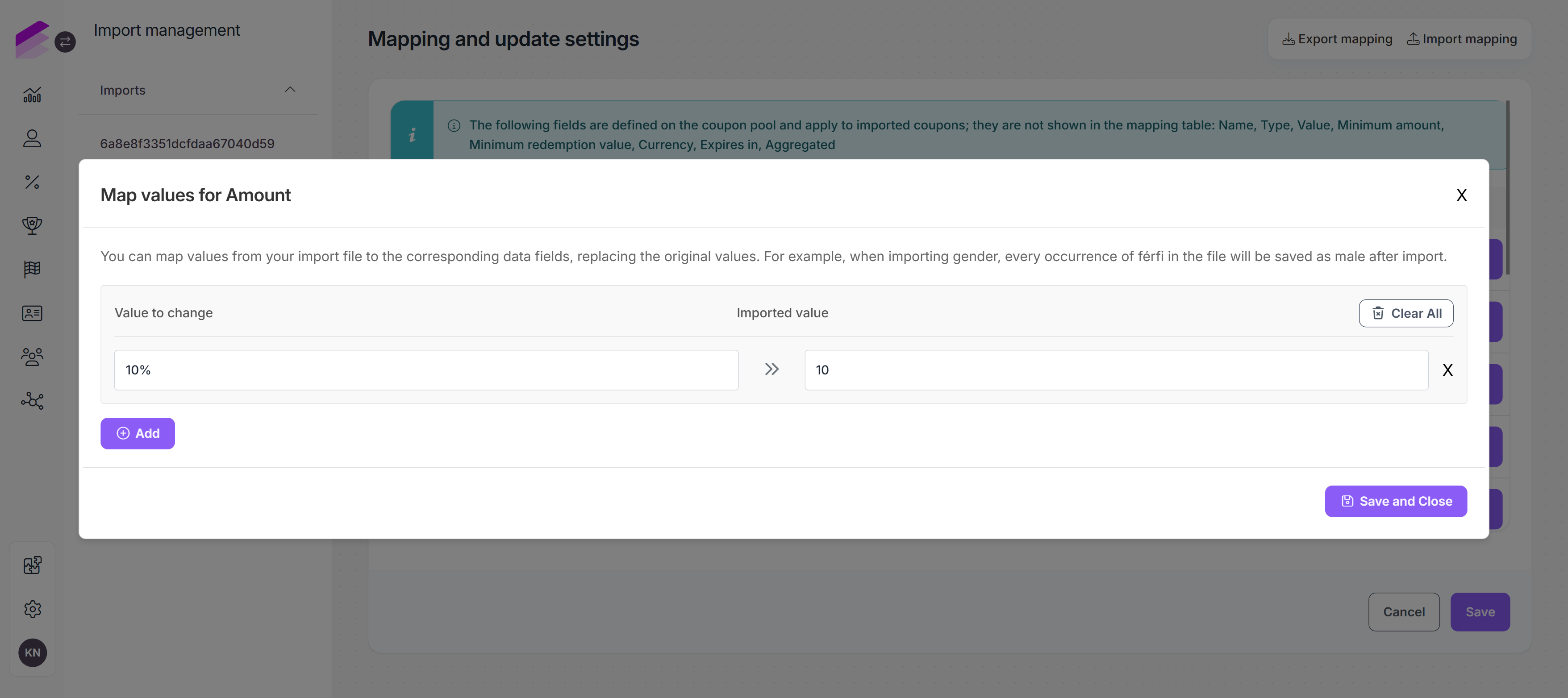
Value mapping can be used to replace values from the source file with values expected by Antavo.
To configure value mapping:
Click Map Values next to the applicable coupon attribute
Enter the value found in the import file and the value it should be replaced with
Click Add to add the replacement
Add further replacements as needed
Click Save and Close
The configured replacements are applied before the values are validated and imported.
Exporting and importing mapping settings
Mapping configurations can be exported and reused in later imports.
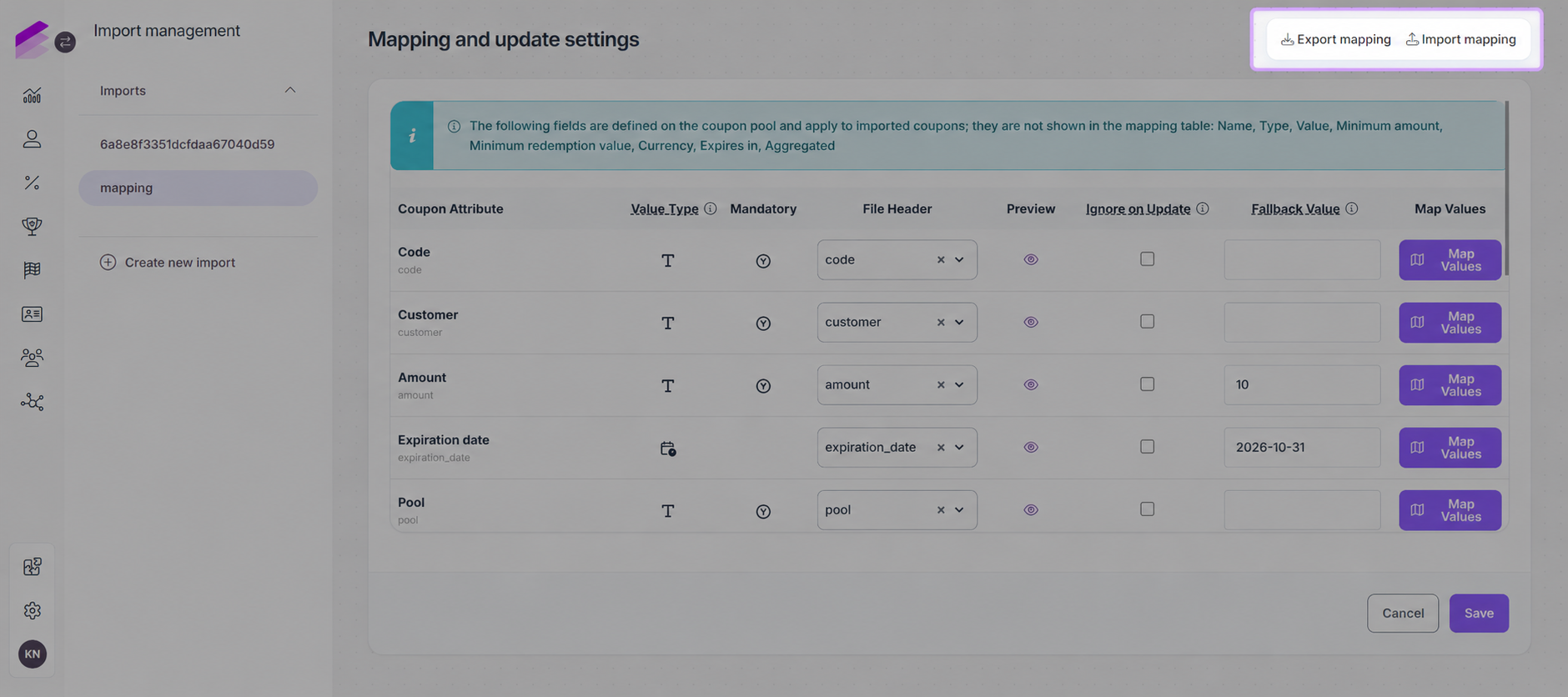
Two options are available on the Mapping and update settings page:
Export mapping: Download the current mapping configuration as a JSON file.
Import mapping: Upload an exported mapping configuration after it has been edited outside Antavo. This allows multiple mappings, fallback values, and value mappings to be adjusted in the file and applied at once instead of updating them individually in the UI.
Imported mapping settings can be modified before they are saved.
Once all attributes are configured, click Save to return to the import page.
Workflow impact warning
During validation, a Workflow impacting import popup message may appear. This pop-up is shown when the system detects active workflows linked to coupon assign activities. These workflows can affect import performance or trigger unintended changes on customer records during the import process.
The pop-up displays a list of the affected workflows. From this list, you can review the workflows and temporarily set non-essential ones to Inactive for the duration of the import, while keeping required workflows active.
After reviewing the list and making any necessary changes, you click Acknowledge to continue with the import. When validation completes successfully and a Validation finished message is displayed.
4. Validation
After saving the mapping settings, click Validate.
Validation checks the mapped coupon data before the import is started. Configured fallback values and value mappings are applied as part of this process. Boolean attributes accept TRUE, FALSE, or an empty value.
Validation includes checks for:
missing mandatory values,
missing or invalid coupon pools,
coupon pools that do not use Uploaded as their source,
customers that cannot be found when a coupon is assigned,
values that do not match the expected attribute type,
invalid date and datetime formats,
invalid boolean values,
values that are not among the accepted options of select or custom attributes.
If validation finds errors, a message explains that the invalid rows can be corrected or re-uploaded, or the import can continue using only the rows that passed validation.
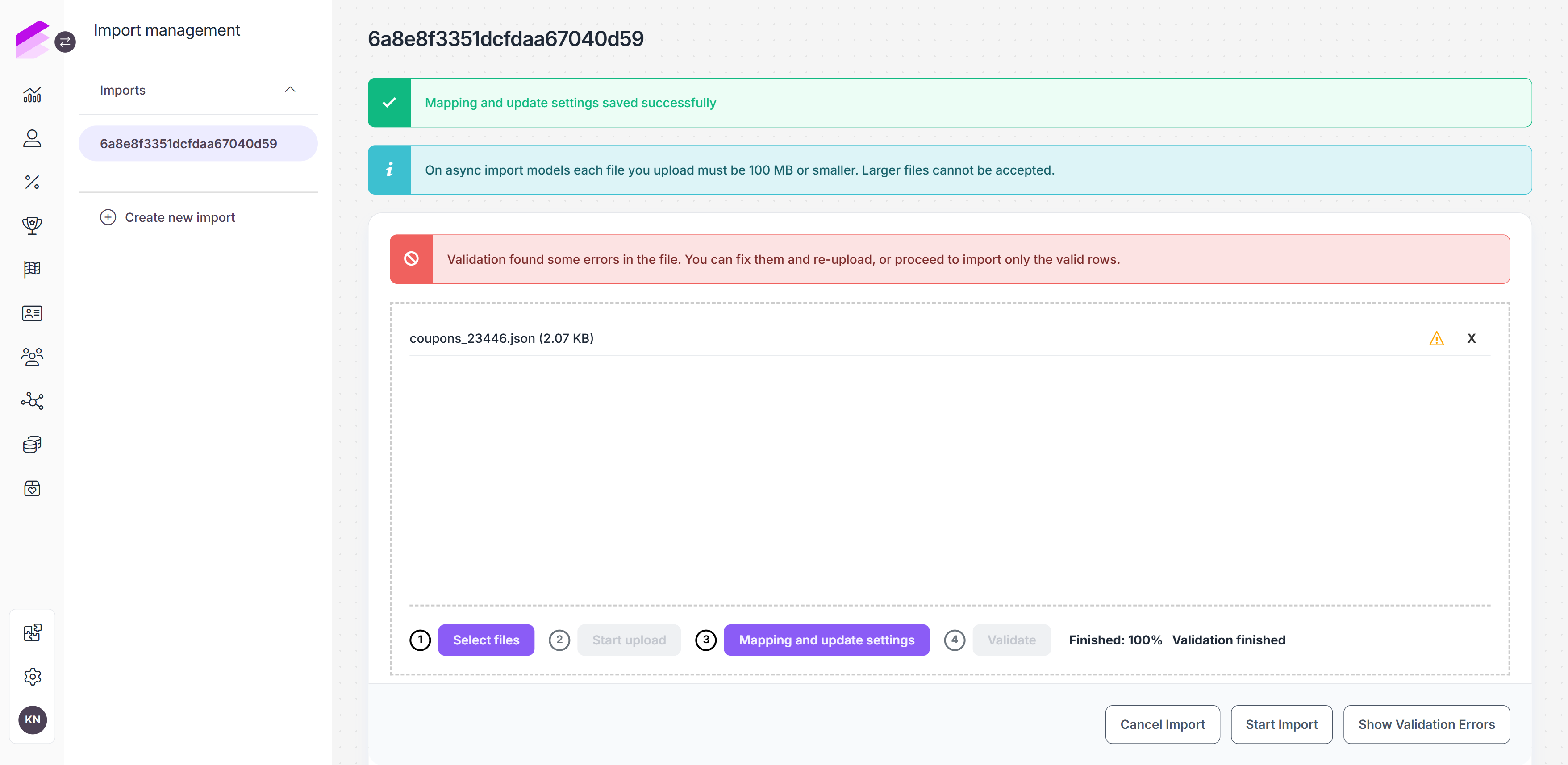
Changing the mapping configuration after validation requires validation to be run again before the import can be started.
Workflow impact warning
After validation finishes, a Workflow impacting import popup may appear. The popup indicates whether active workflows could impact the import and reminds you to turn off non-essential workflows before starting the import. Review the information and click Acknowledge to continue.
Reviewing validation errors
Click Show Validation Errors to open the Coupon Import Errors page. Errors are grouped by source file, with the total number of errors displayed for each file. Each error includes:
row number
code
error
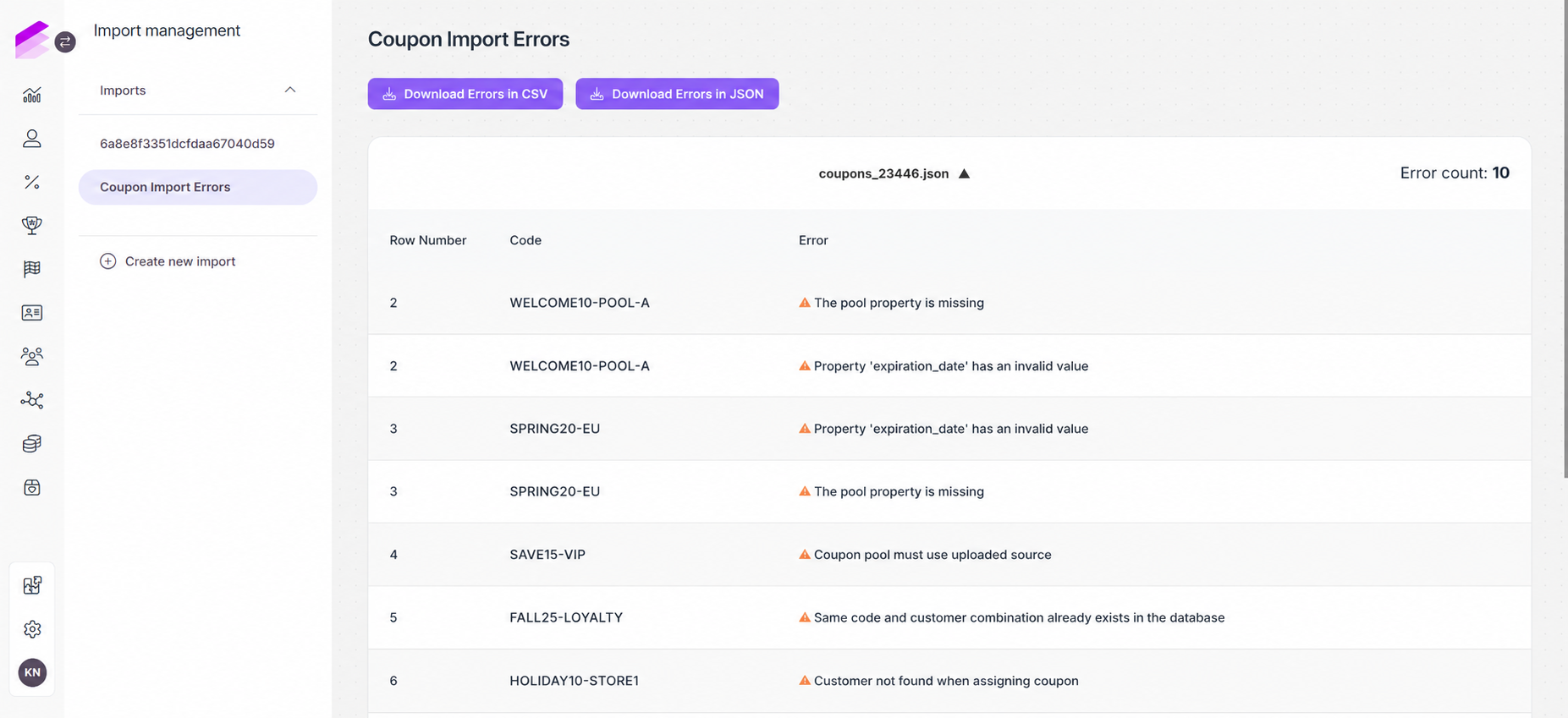
The error message identifies the reason the row failed validation, such as missing coupon pool, unsupported coupon pool source, or a customer that could not be found. The validation error list can be downloaded using Download Errors in CSV or Download Errors in JSON. Click Back to return to the import and either correct the source data or continue with the valid rows.
5. Start import
After validation is complete, click Start import.
A confirmation window explains that only records that successfully passed validation will be imported, while records with errors will be excluded. Click Start Import in the confirmation window to proceed.
During import, Antavo creates new coupon records using the validated mapped values. Attributes shared with the target coupon pool are inherited from the pool rather than taken from the import file.
Importing a coupon code that already exists creates a separate coupon instead of updating the existing coupon. This allows the same coupon code to be included more than once in a coupon pool. However, the same generic coupon code can only be assigned to one customer, even if the code is available in different coupon pools.
If a newly created coupon is assigned to a valid existing customer through the imported data, a coupon_assign event is registered for that customer.
Once the import starts, the import details page is displayed.
Import results
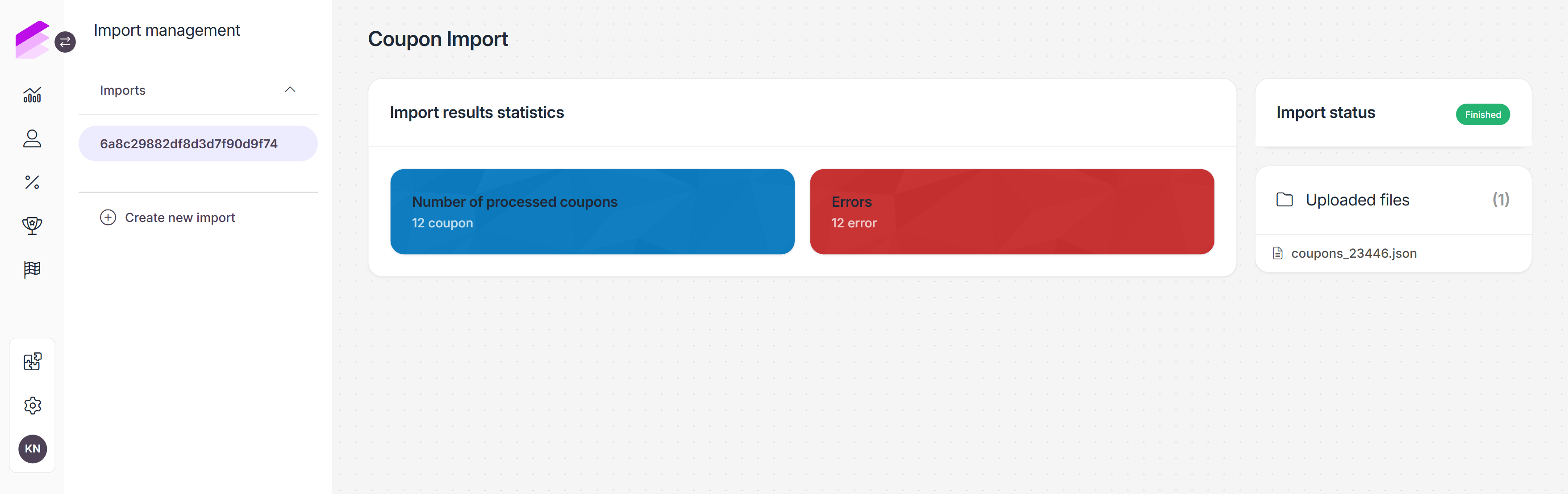
The import details page displays the progress and results of the import. While the import is being processed, the import status is displayed as processing, Once processing is complete, the status changes to finished.
The Import result statistics section displays:
Number of processed coupons: The number of coupons successfully created during the import.
Errors: The number of errors associated with the import.
The uploaded source files are also listed on the page. The import details page can also be accessed later from the Imports list.
Import errors
Errors associated with the completed import can be reviewed from the import details page.
Open the Errors section to open the Coupon Import Errors page.
The error list provides:
File name
Row number
Coupon code
Error message
Use the search field to find specific errors in the list. Click Back to return to the import details page.
Import results on customer profiles
When an imported coupon is assigned to an existing customer, a coupon_assign event is registered on the customer's event history.
Coupons imported without a customer assignment are created in their corresponding coupon pools without registering a coupon_assign event for a customer.
.png)