Product management brings together the catalog structure and contexts configured earlier.
The selected family provides the product fields.
Channels and locales determine the context of scoped values
Currencies define the available monetary units
Categories position the product within the catalog hierarchy.
Creating a product
Navigate to Catalog > Products
Click Create Product
Select the product Type
Simple: Creates a standalone product with its own SKU and product values.
Configurable: Creates a parent product used to group variants, such as the different sizes or colors of the same item.
Select the Family that defines the product fields
Enter a unique SKU
Click Save Product
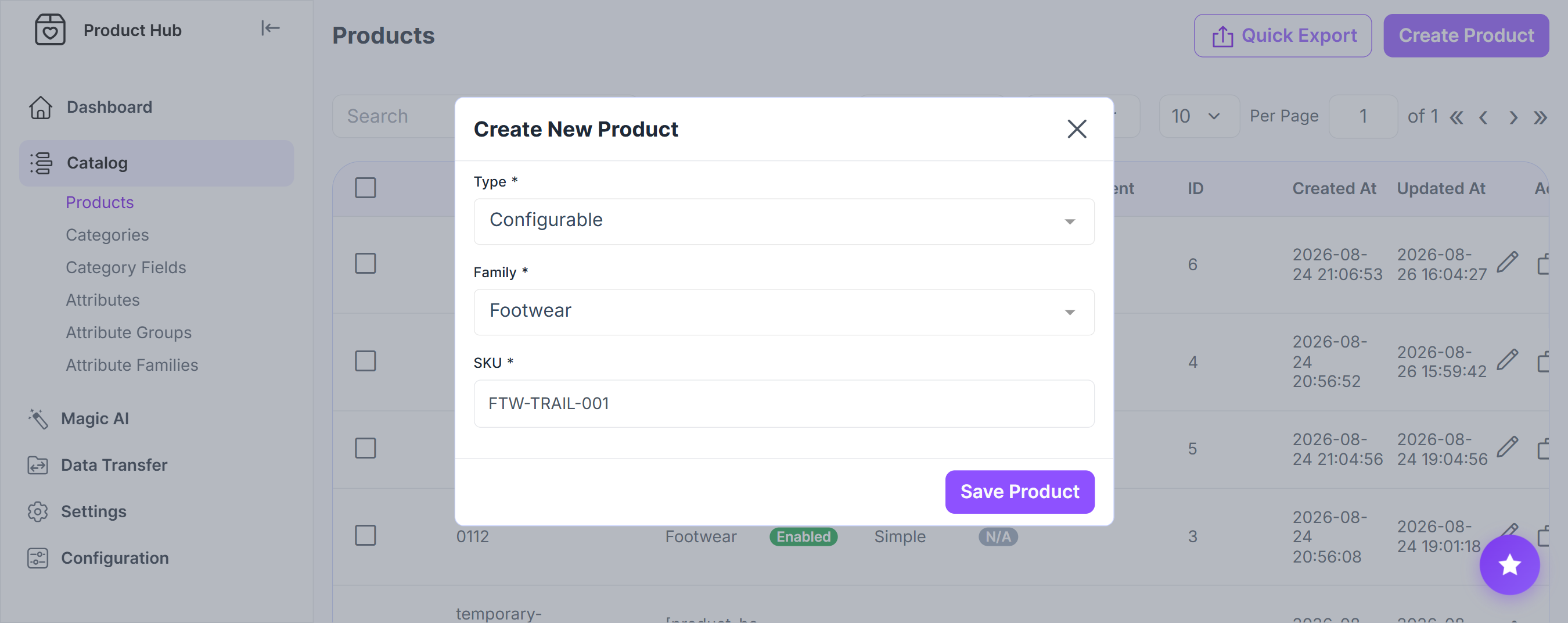
If you are creating a Configurable product:
Select the Configurable attributes that define the product variants, such as size or color
Only Select and Multiselect attributes assigned to the selected family are available.
Click Save Product to open the product editor
In the product editor:
Select the applicable channel and locale at the top of the page
Selecting a channel determines which locales are available. Only locales assigned to the selected channel can be selected.
Complete the fields provided by the selected family
Attributes are displayed in the groups and order configured in the family editor.
For price attributes, enter values in the currencies available for the selected channel
Set the product Status to enabled or disabled
Assign the product to the applicable categories
For a Configurable product, click Add Variant, enter a unique SKU, and select a value for each configurable attribute. Repeat this step for each required variant.
Add related, up-sell, or cross-sell products under Associations
Click Save Product
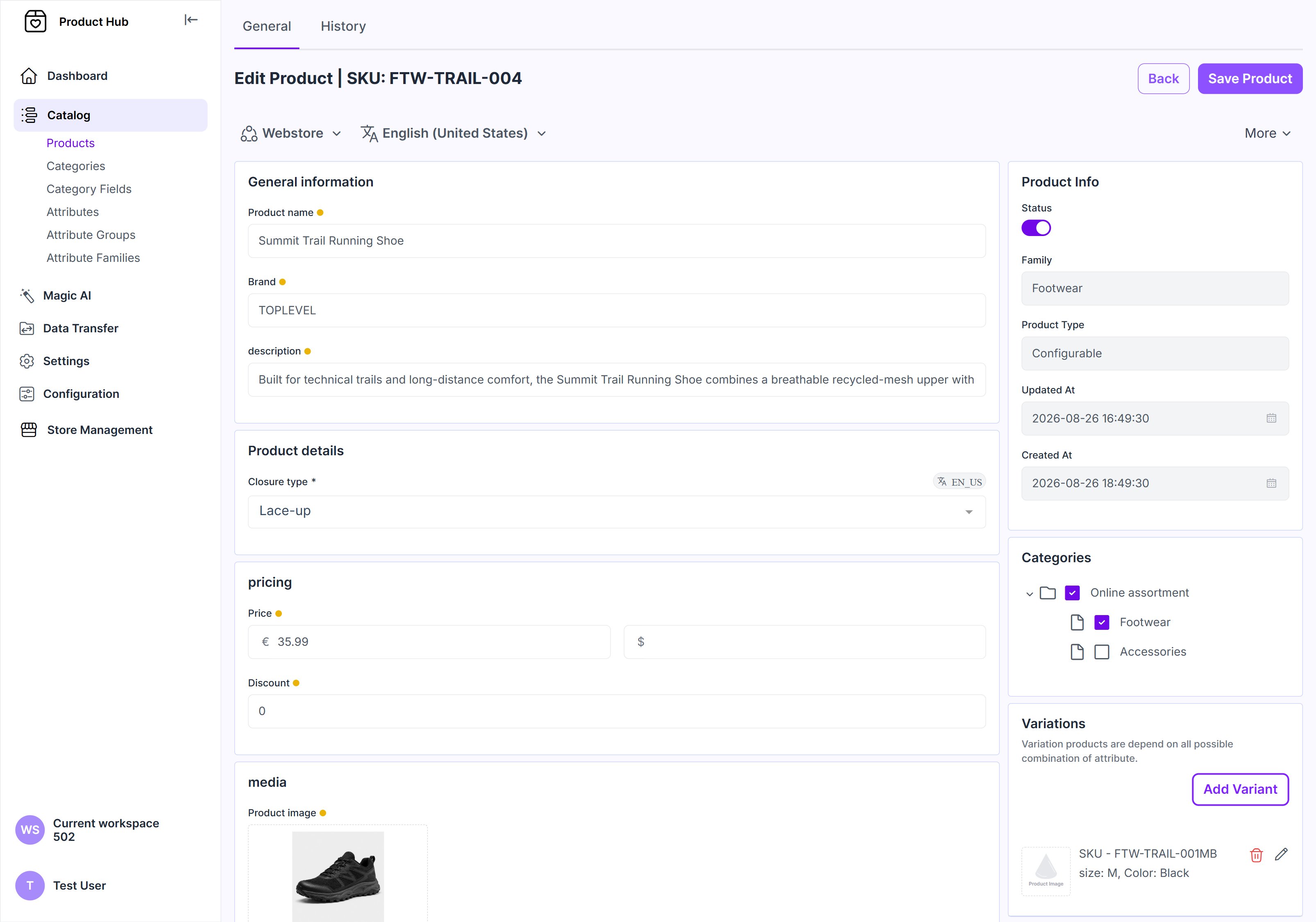
The product SKU, type and family cannot be changed after creation.
Product descriptions, images, and translations are typically supplied by the system that maintains the source product content. If content is maintained directly in Product Hub, optional AI-provider connections can assist with these tasks. AI configuration is not required for standard catalog management or product imports.
Working with the product grid
For searching, filtering, editing, deleting, and reviewing recorded changes, see Working with Product Hub records.
Use Columns to control which fields are displayed in the grid. Changing the visible columns does not modify the underlying product data.
Click Quick Export to generate an export directly from the product grid. Select XLS, XLSX, or CSV as the output format. For reusable or configurable exports, use Data Transfer > Exports instead.
Before deleting a product, check whether it is used in category assignments, product associations, promotions, workflows, or other connected configurations.