The Garmin integration facilitates tracking customers' sports activities and incentivizes their engagement through loyalty benefits.
The integration generates events based on the activities logged in customers’ personal Garmin accounts. These activities can be recorded using Garmin activity trackers like watches or uploaded manually through the Garmin Connect mobile app or website.
Please note that the Garmin integration records only Garmin activity events on customers' profiles. It doesn’t directly offer any loyalty benefits to customers but captures data that can be utilized when configuring Workflows or Challenges. For additional details on setting up Workflows or Challenges that reward Garmin sports activity, please refer to the Use cases chapter.
Support for OAuth 1.0 will be discontinued by Garmin on December 31, 2026. Existing integrations and member connections must be migrated to OAuth 2.0 before this date to continue receiving activity data. OAuth 1.0 support will also be removed from Antavo.
Prerequisites
Before you start configuring the Garmin integration in Antavo, make sure you have completed the following:
Creating a Garmin app in Garmin
Create a Garmin developer account and get the OAuth 2.0 client secret
Log in to the Garmin Developer Portal and create a new app in Garmin
Before Garmin activates the app and enables API access, customers must complete a manual screening process and share details about the planned integration and data usage. This step takes time and requires additional effort beyond registration, so it should be started early to avoid delays in the implementation timeline.
Enabling the Garmin integration module in Antavo
Make sure the Garmin integration is enabled in the Management UI
Navigate to the Modules menu
Use the search bar to find the Garmin integration
If the Configure button is not accessible, please reach out to the Antavo Service Desk to enable the integration for you
Once you have an app created under the Garmin Developer Portal, proceed to set up the Garmin Integration module in Antavo.
Setting up the Garmin Integration module
Navigate to the Modules menu
Find the Garmin integration and click Configure
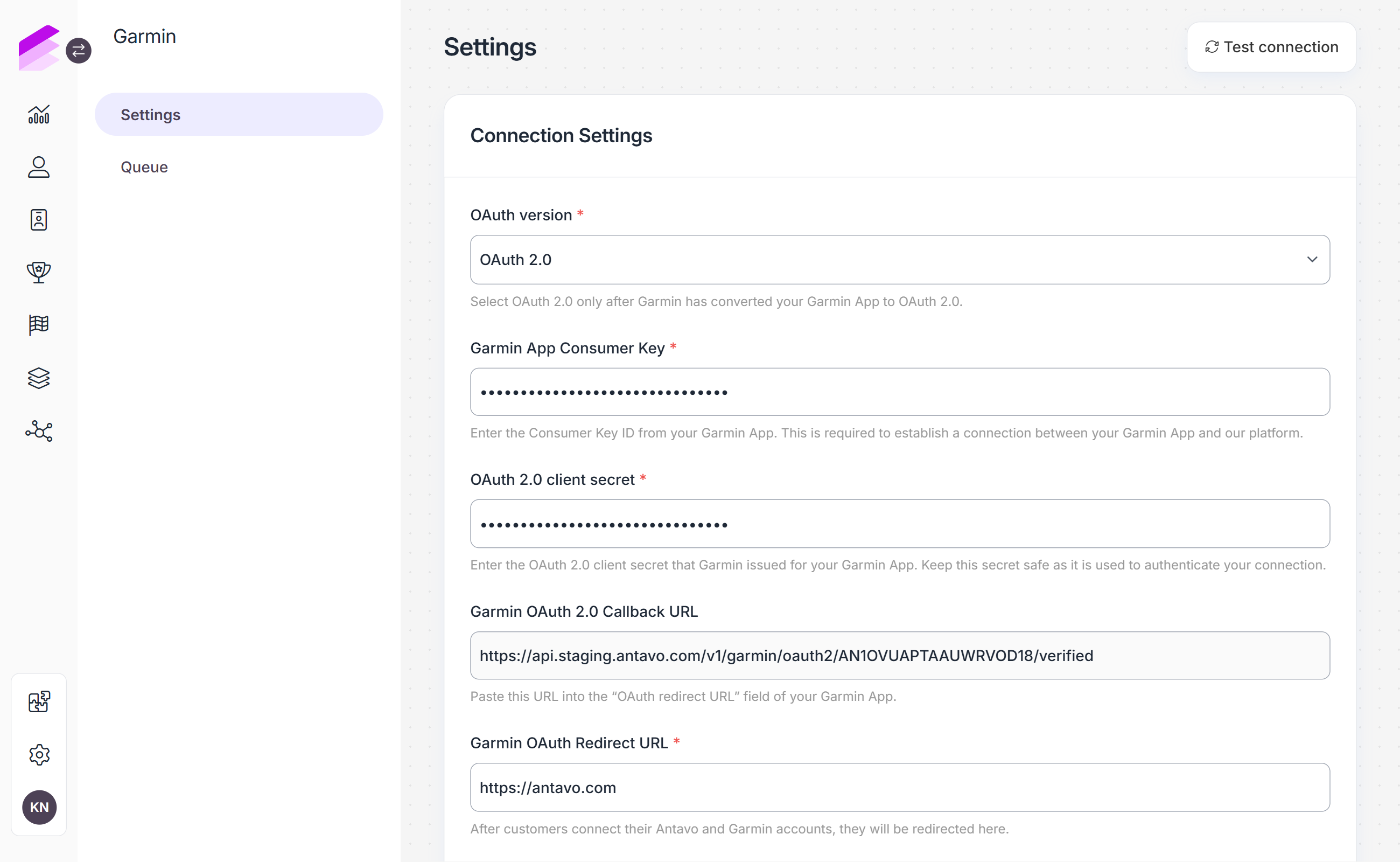
Select OAuth 2.0 in the OAuth version field
The OAuth 2.0 client secret and Garmin OAuth 2.0 Callback URL fields are displayed.Enter the Garmin app's consumer key in Garmin App Consumer Key
Enter the client secret issued by Garmin in OAuth 2.0 client secret
Copy the read-only Garmin OAuth 2.0 Callback URL and paste it into the OAuth redirect URL field of the Garmin app in the Garmin Developer Portal
This URL is used to return customers to Antavo to complete authentication.In Garmin OAuth Redirect URL, enter the destination on the program's website where customers should be redirected after the connection attempt
This is the customer-facing page used to communicate the result of the connection.Click Save
Click Test connection to validate the consumer key and OAuth 2.0 client secret with Garmin
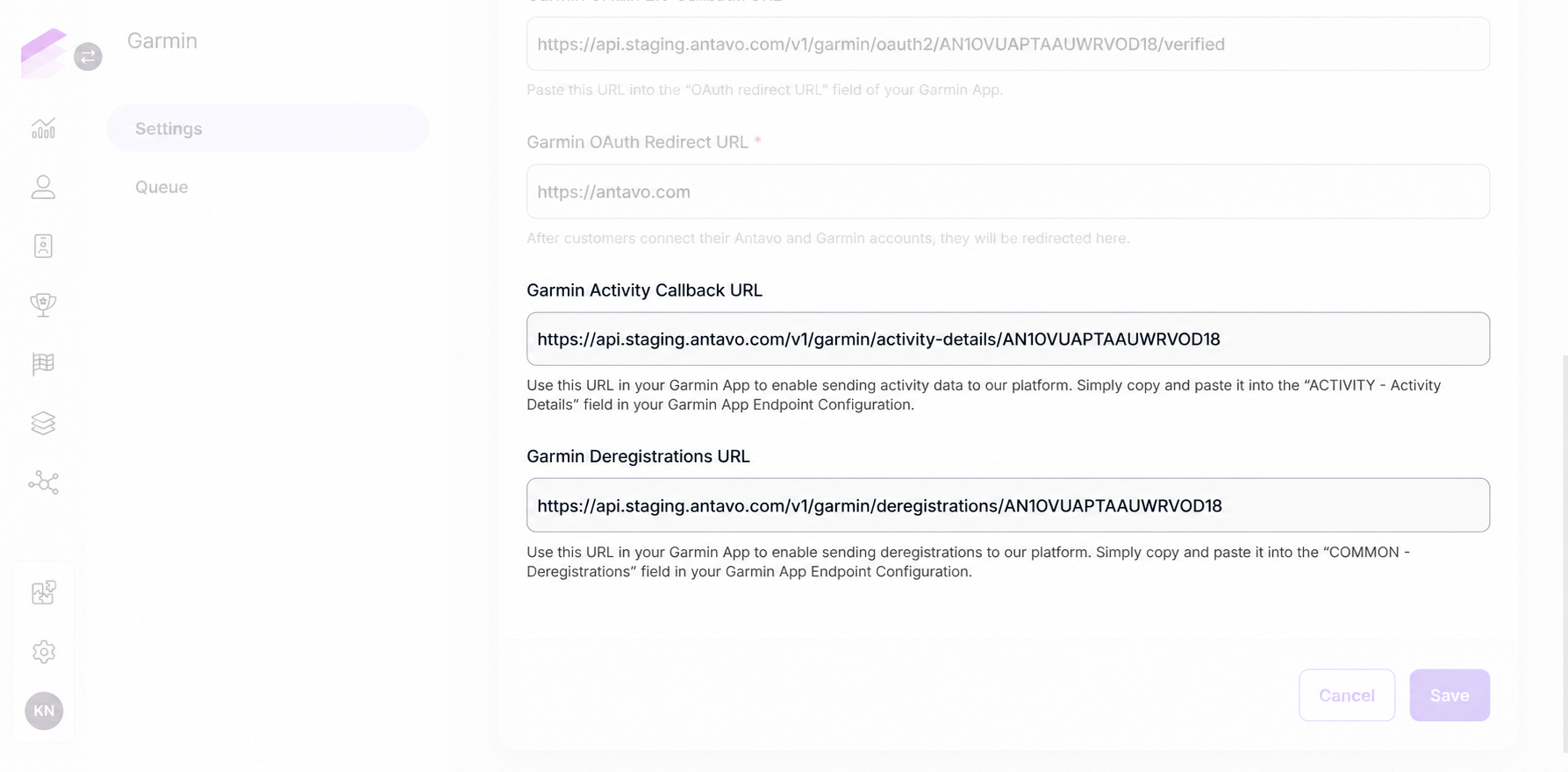
Configuring activity and deregistration endpoints
The settings page also displays the URLs used to receive activity data and account disconnection notifications from Garmin. Copy these read-only URLs into the corresponding fields in the Garmin app's Endpoint Configuration:
URL displayed in Antavo | Field in Garmin Endpoint Configuration | Purpose |
|---|---|---|
Garmin Activity Callback URL | ACTIVITY – Activity Details | Receive customers' activity data. |
Garmin Deregistrations URL | COMMON – Deregistrations | Receive notifications when a customer disconnects the Garmin account from the app. |
After the module setup, Garmin must be enabled to send activity data to Antavo. For assistance with this step, please contact the Antavo Service Desk.
Creating a connect URL
Generating a connection URL requires a technical implementation to ensure each customer receives a unique link. We recommend consulting your developers to implement the necessary procedures.
Customers must be provided with a connection link to grant consent to the app to access their activity data. This data is then used in the loyalty program mechanism.
The link should be created in the following format:
https://api.{environment}.antavo.com/v1/garmin/oauth/{customer_id}/{public_api_key}
Where:
{environment} is the API environment currently in use, which should align with the setup environment,
{customer_id} is the unique identifier assigned to each customer,
{public_api_key} is the API key assigned to the program
When customers open the connection link, they are redirected to Garmin's OAuth 2.0 consent page to authorize access to their activity data.
After the connection attempt, customers are redirected to the Garmin OAuth Redirect URL configured in Antavo. The URL includes parameters indicating whether the connection was successful, as described below.
It’s important to note that a loyalty member can only be connected to one Garmin account.
Use the status parameter to communicate the connection result to customers on the program's website. The possible outcomes are:
?status=success: indicates that the connection was successful
This ensures that Antavo receives the customer’s Garmin ID, providing information about the owner of the activity.?status=error: indicates that the connection was unsuccessful because the customer denied access or any other issue occurred.
Setting up the Garmin integration service
To ensure all requests are processed successfully, Garmin API calls are not immediately processed. Instead, they are queued for later processing.
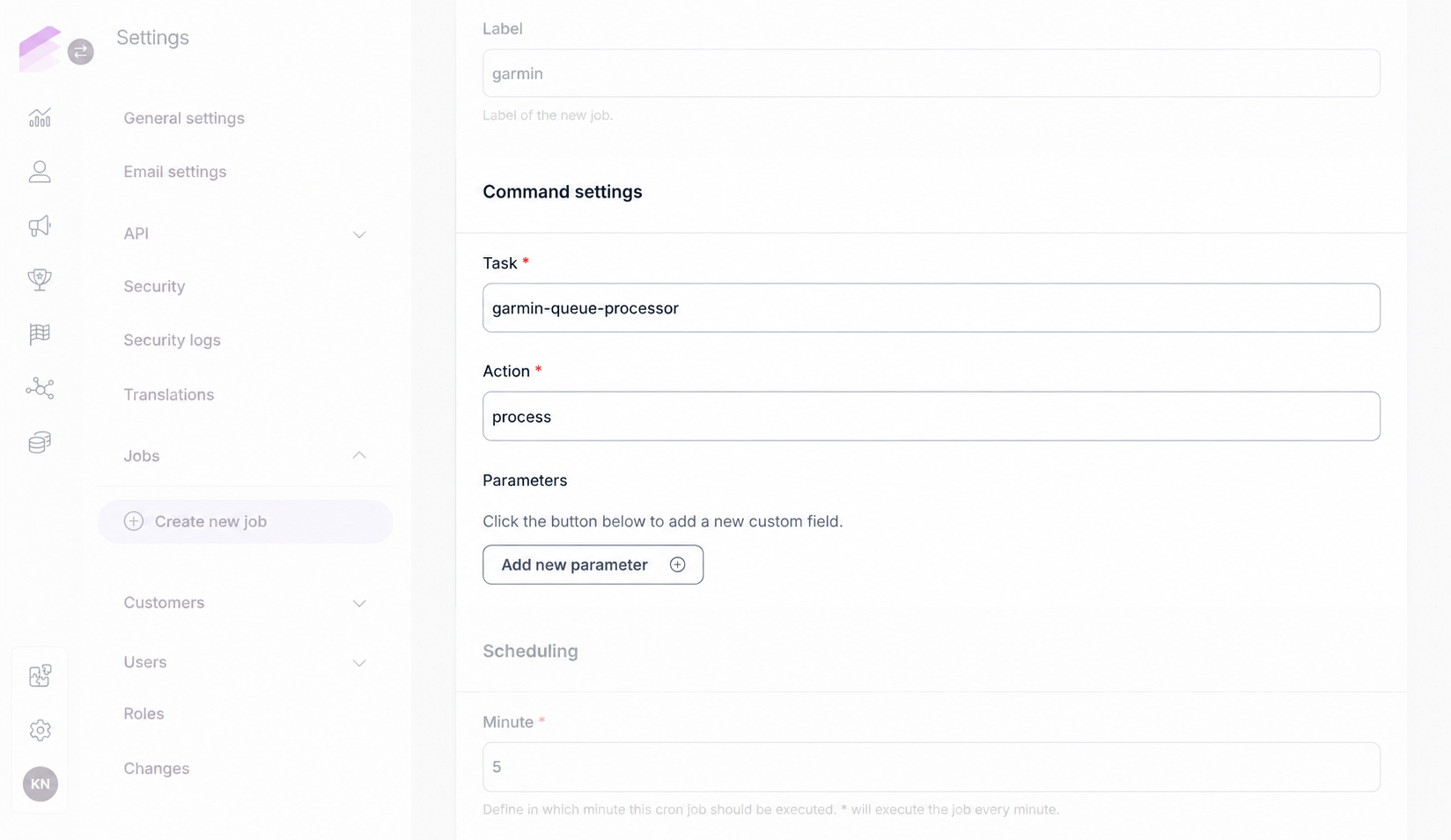
To activate the service managing the queue, set up a new cron job.
When configuring the new cron job, ensure:
The Task field must be garmin-queue-processor
The Action field must be process
No parameters are needed or supported
It is recommended to run the job every minute or every 5 minutes for the best performance
Maintaining OAuth 2.0 connections
In addition to activity processing, OAuth 2.0 connections require scheduled token renewal. Antavo configures a daily background job to renew members' tokens before they expire and help maintain uninterrupted activity tracking.
Contact the Antavo Service Desk to arrange this job when setting up or updating the integration.
Request queue
Here you can find the queue of activities coming from customers' Garmin accounts.
Identifier | The unique ID of the activity |
Created At | A timestamp indicating when the activity was added to the queue |
Started At | A timestamp indicating when the processing of the activity started |
Finishes At | A timestamp indicating when the processing of the activity was completed |
Request URI | The URI where the request was sent |
Request Method | The method used for requesting the activity (e.g., GET, POST) |
Status | The status of the activity processing (e.g., pending, finished) |
Type | The type of activity request |
Customer | The customer associated with the activity |
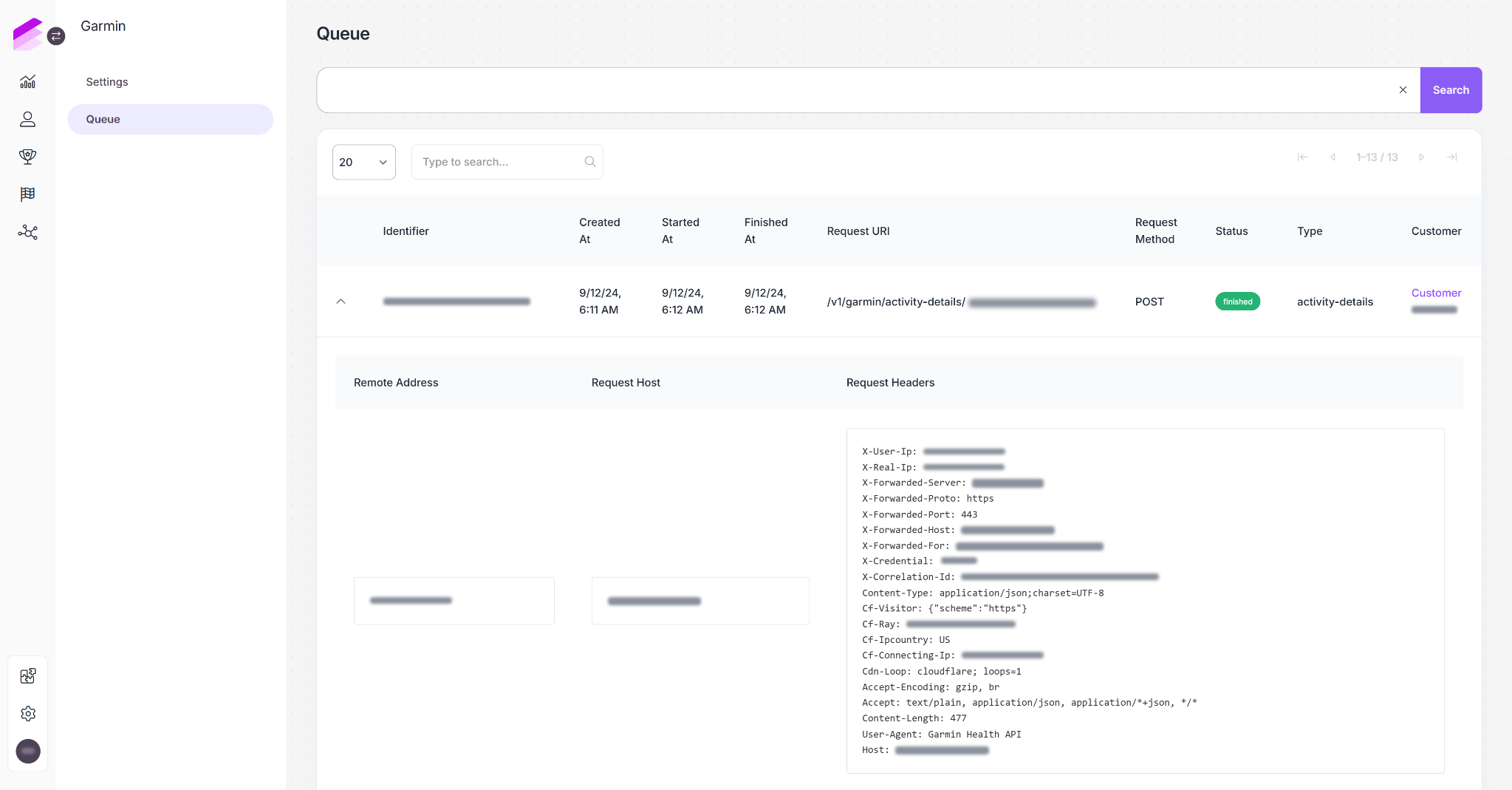
When the request is successfully processed, the Garmin activity is registered in the customer’s event history.
Use cases
To reward customers with loyalty benefits, you'll need to set up Workflows and/or Challenges where Garmin activities will serve as triggers for other actions, such as rewarding customers with loyalty points or assigning them coupons.
Use case - Walk for an hour over the weekend and earn 100 loyalty points
In this challenge, customers need to walk for an hour over the weekend to earn 100 loyalty points.
Create a new challenge
In the Points field, enter 100
Set the Start date and End date according to your needs
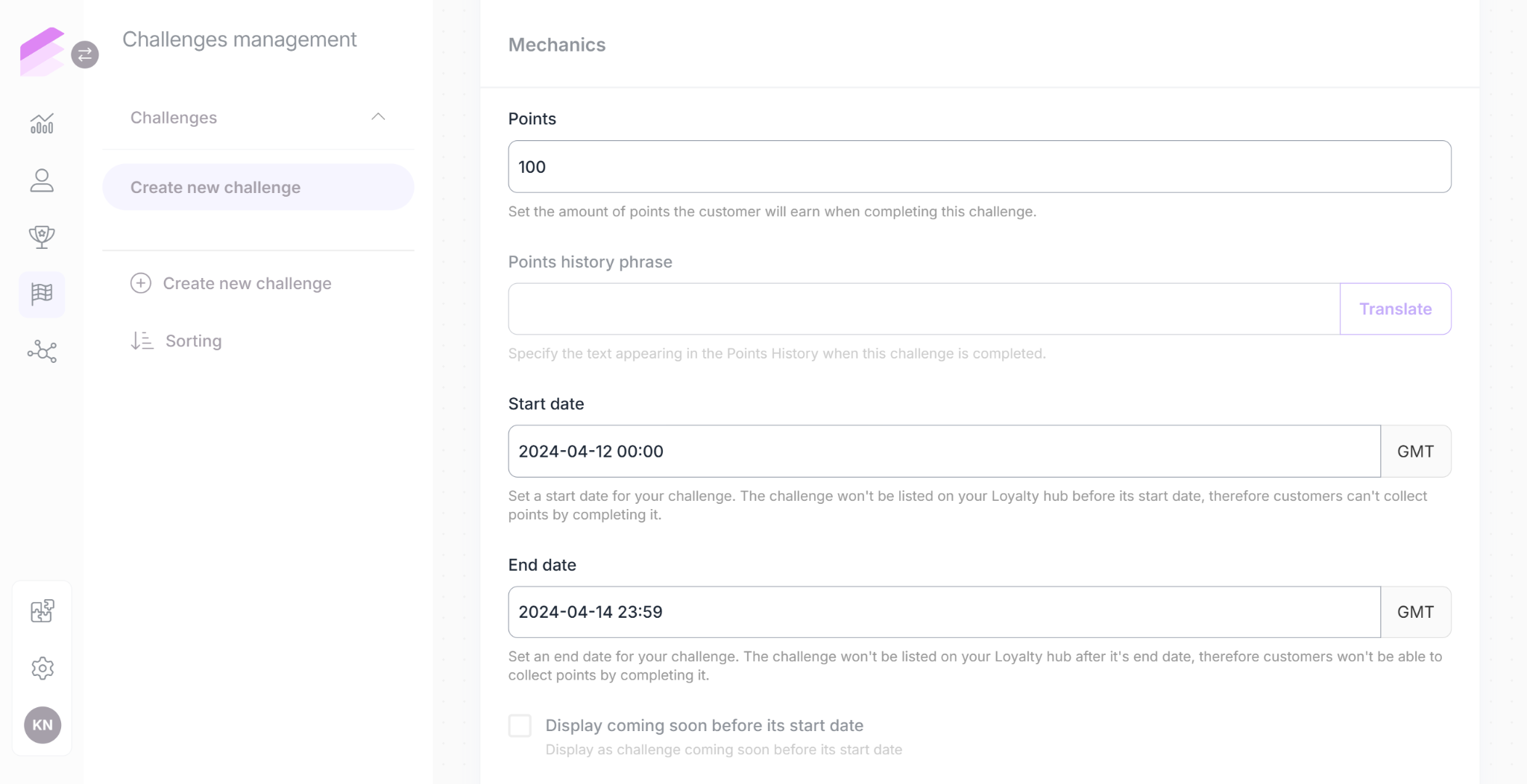
In the Criteria field, click Add a criterium, then select Garmin activity from the drop-down list
Click Add filter, then
Select activity_type as an Attribute
Select equals to as an Operator
Enter CASUAL_WALKING as a Value. At the bottom of the article, you can find the full list of Garmin activities.
Click on Add filter again, then
Select duration_in_seconds as an Attribute
Select is greater than or equal to as an Operator
Enter 3600 as a Value
.png)
Set 1 time as a Criterium
Make sure you activate the challenge
Use case - Ride for 3 hours and receive a coupon
In this challenge, customers should ride a bicycle on the road for 3 hours to receive a coupon.
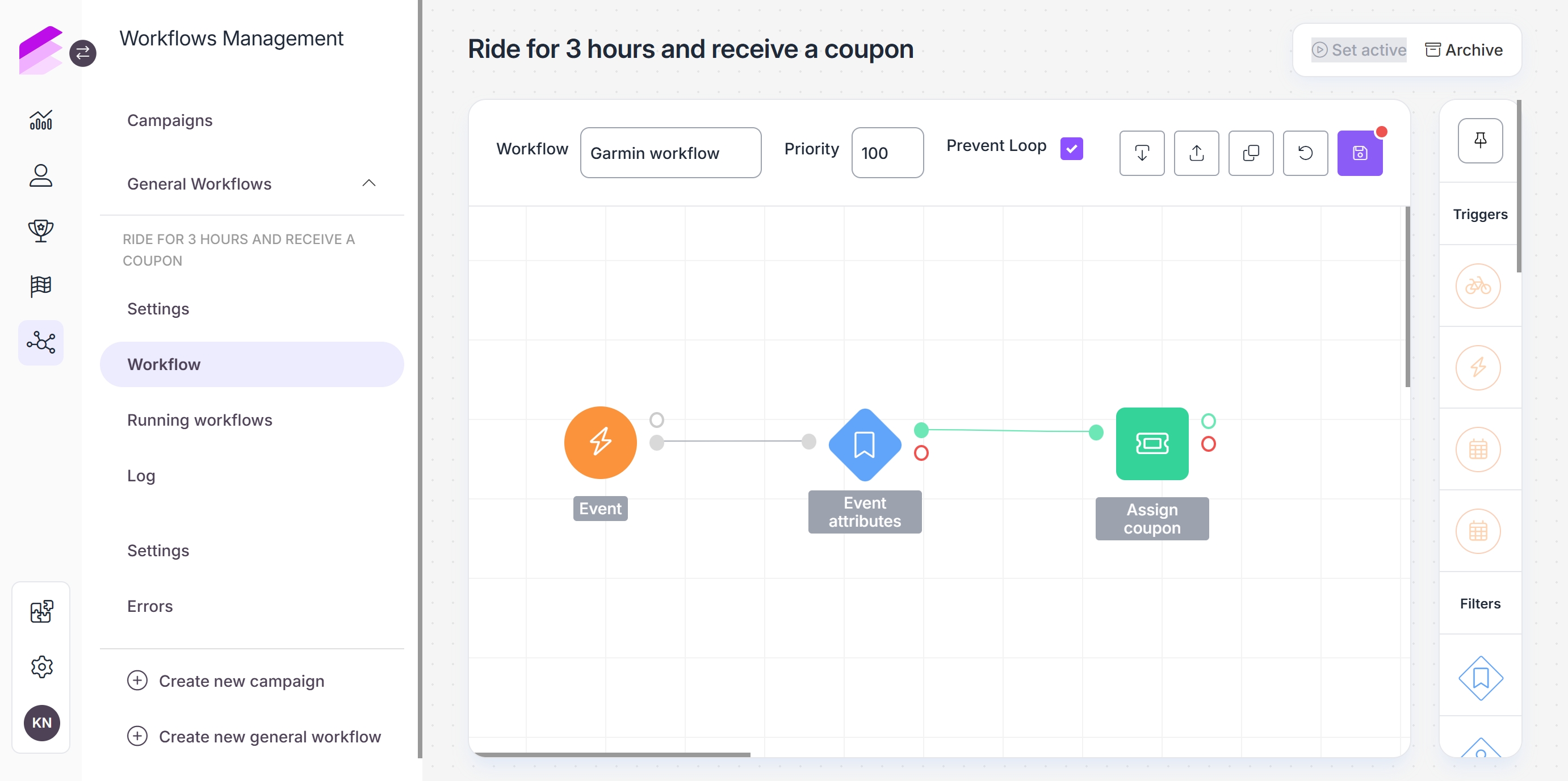
Set up a new workflow
Drag and drop an Event trigger to the canvas
As Event type, select Garmin activity
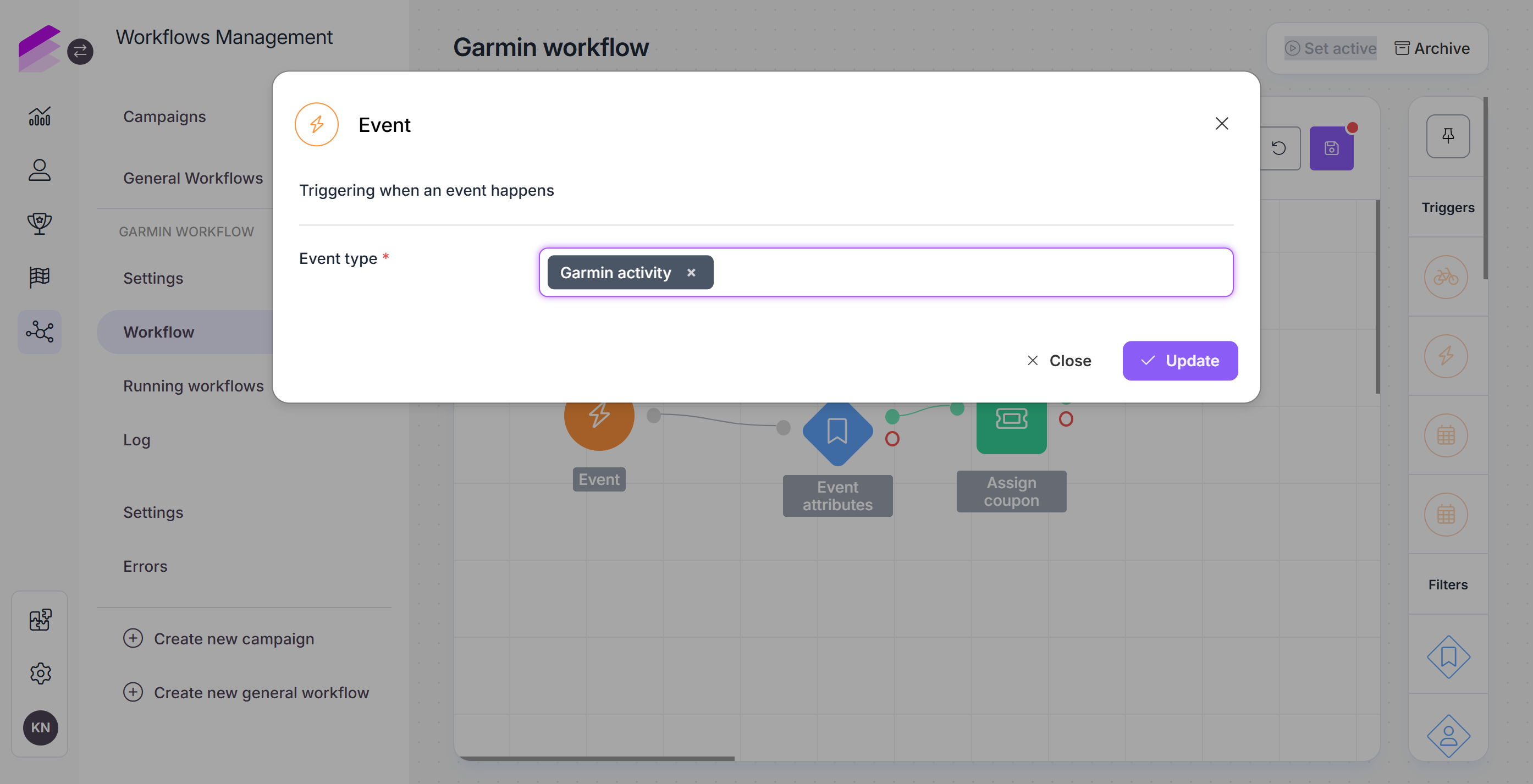
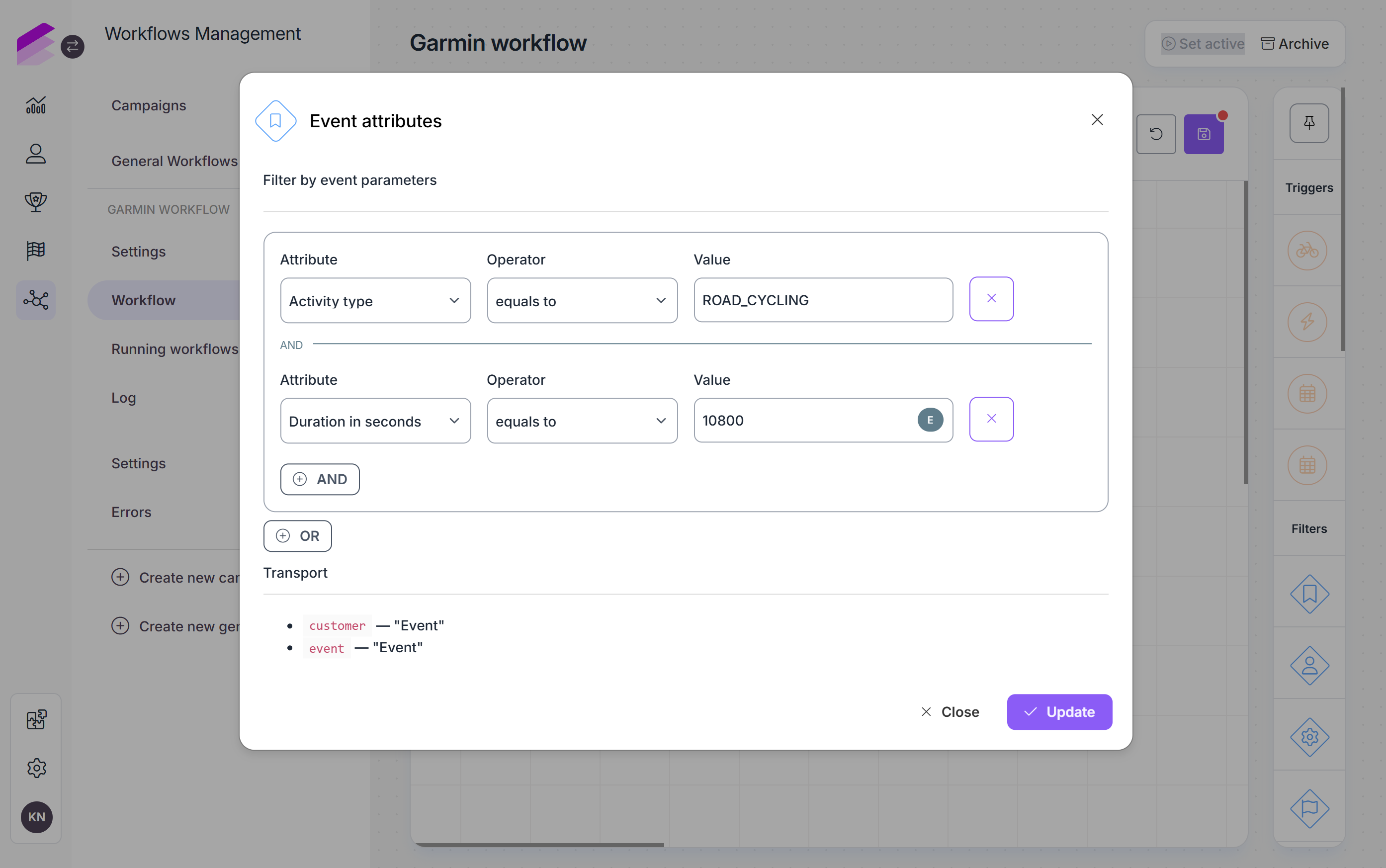
Connect an Event attribute filter to the action branch of the Event trigger, then
Select Activity type as an Attribute
Select equals to as an Operator
Enter ROAD_CYCLING as a Value.
At the bottom of the article, you can find the full list of Garmin activities.Click the And button
Select Duration in seconds as an Attribute
Select is greater than or equal to as an Operator
Enter 10800 as a Value
Connect an Assign coupon action node to the success branch of the Event attribute filter
Double click on Assign coupon and fill in the fields as per your needs
Full list of Garmin activity types
When configuring a Challenge or Workflow, you may need to include Garmin activities as conditions for specific scenarios. Here, you can access the comprehensive list of Garmin activity types:
“RUNNING” Category
INDOOR_RUNNING OBSTACLE_COURSE_RACING STREET_RUNNING TRACK_RUNNING TRAIL_RUNNING TREADMILL_RUNNING ULTRA_RUNNING VIRTUAL_RUNNING HIKING
“CYCLING” Category
BMX CYCLOCROSS DOWNHILL_BIKING EBIKING EMOUNTAINBIKING GRAVEL_UNPAVED_CYCLING INDOOR_CYCLING MOUNTAIN_BIKING RECUMBENT_CYCLING ROAD_CYCLING TRACK_CYCLING VIRTUAL_CYCLING HANDCYCLING INDOOR_HANDCYCLING
“GYM & FITNESS EQUIPMENT” Category
BOULDERING ELLIPTICAL CARDIO HIIT INDOOR_CLIMBING INDOOR_ROWING PILATES STAIR_STEPPER STRENGTH_TRAINING YOGA MEDITATION “SWIMMING” Category
POOL_SWIMMING OPEN_WATER_SWIMMING
“WALKING/INDOOR WALKING” Category
CASUAL_WALKING SPEED_WALKING
“WINTER SPORTS” Category
BACKCOUNTRY_SNOWBOARDING BACKCOUNTRY_SKIING CROSS_COUNTRY_CLASSIC_SKIING RESORT_SKIING SNOWBOARDING RESORT_SKIING_SNOWBOARDING CROSS_COUNTRY_SKATE_SKIING SKATING SNOWSHOEING SNOWMOBILING
“WATER SPORTS” Category
BOATING FISHING KAYAKING KITEBOARDING OFFSHORE_GRINDING ONSHORE_GRINDING PADDLING ROWING SAILING SNORKELING STAND_UP_PADDLEBOARDING SURFING WAKEBOARDING WATERSKIING WHITEWATER WINDSURFING
“TRANSITION” Category
BIKE_TO_RUN_TRANSITION RUN_TO_BIKE_TRANSITION SWIM_TO_BIKE_TRANSITION
“TEAM SPORTS” Category
AMERICAN_FOOTBALL BASEBALL BASKETBALL CRICKET FIELD_HOCKEY ICE_HOCKEY LACROSSE RUGBY SOCCER_FOOTBALL SOFTBALL ULTIMATE_DISC VOLLEYBALL
“RACKET SPORTS” Category
BADMINTON PADEL PICKLEBALL PLATFORM_TENNIS RACQUETBALL SQUASH TABLE_TENNIS TENNIS
“OTHER” Category
BOXING BREATHWORK DANCE DISC_GOLF FLOOR_CLIMBING GOLF INLINE_SKATING MIXED_MARTIAL_ARTS MOUNTAINEERING ROCK_CLIMBING STOPWATCH
“PARA SPORTS” Category
WHEELCHAIR_PUSH_RUN WHEELCHAIR_PUSH_WALK